WooCommerce size charts: size guides that reduce returns
By Mariusz Szatkowski · Updated: 2026-09-11
On apparel, footwear and anything sold by fit, the single biggest source of returns is a simple one: the customer guessed the size wrong. A size chart removes the guess. It lets the shopper check real measurements against their own before they commit, which lifts conversion and lowers the return rate at the same time. The catch is that WooCommerce, out of the box, has no size chart at all, so the sizing question either becomes a support email or a lost sale. This guide explains what a size chart is, why it matters, what a good size guide tool needs, and how the free Sizer plugin adds one to WooCommerce without cluttering or slowing the product page.
What a size chart actually is
A size chart, or size guide, is a labelled table that maps a size name to the measurements it represents. The first column is usually the size the shopper picks (S, M, L, or EU 38, 39, 40), and the remaining columns are the measurements that define that size: chest, waist, length, foot length, and so on. The shopper reads across the row that matches their own body and picks the size that fits.
It is worth separating the chart from where it lives. The chart is the data: the columns, the rows and an optional caption that explains how to measure. The presentation is how that data reaches the shopper on the product page, ideally close to the buying decision and out of the way until it is wanted. A good tool keeps those two things separate, so you maintain the data in one place and the presentation takes care of itself across every product that uses the chart.
Why a size chart matters
Returns are expensive twice over: you lose the sale and you pay to handle the goods coming back, then restock or write them off. For sized products, a large share of returns come down to fit rather than fault. A size chart addresses that directly.
- It builds confidence to buy. A shopper who can confirm the measurements is more likely to complete the order rather than abandon it in doubt. Uncertainty is a silent cart-killer on fashion.
- It reduces wrong-size returns. When the customer checks the chart first, fewer orders come back simply because the size was off. Every return prevented is margin kept.
- It answers the question on the page. Without a chart, “will this fit me?” becomes a support ticket or, more often, a closed tab. The chart answers it at the exact moment it is asked.
- It surfaces patterns over time. Once shoppers stop guessing, the returns you do get tell you more, because they are less likely to be noise from a missing chart.
Where to put it
A size chart helps most at the moment of decision, which is the product page next to the add-to-cart action. The clean pattern is a size guide button right beside add-to-cart that opens the chart in a modal. The shopper taps it, reads the measurements, closes it, and buys, all without leaving the page or scrolling away from the price.
Sizer for WooCommerce follows this pattern exactly: it injects a size guide button immediately after the add-to-cart button and opens the assigned chart in an accessible modal. Crucially, when a product has no chart assigned, nothing is added to the page. There is no empty button and no broken modal, which matters on a mixed catalogue where only some products are sized.
Note: When a product has no chart assigned, Sizer adds nothing to the page. There is no empty button or broken modal, which matters on a mixed catalogue where only some products are sized.
What a good size guide tool needs
A size guide tool for WooCommerce should cover a handful of fundamentals. Use this as a checklist whether you build, buy or install:
- Reusable charts. Build each chart once and assign it to many products, rather than re-entering the same table over and over.
- Per-product assignment. Control which chart, if any, shows on each product, so a shirt gets the shirt chart and a mug gets nothing.
- A graceful empty state. Products with no chart should render nothing, not a dead button.
- Placement near add-to-cart. The guide belongs at the decision point, not buried in a tab below the fold.
- An accessible modal. The chart should open in a dialog that works with a keyboard and a screen reader, with a labelled heading and a clear way to close.
- Light footprint. No external requests, no heavy scripts, no layout disruption, so the product page stays fast.
- Themability. The button and modal should inherit or be re-themed to match your store, not fight it.
Notice what is not on that list: a giant settings panel. The wording the shopper sees and the chart data are the two things you actually need to control. Everything else is presentation that a good default handles for you.
How Sizer handles it
Sizer is a free, open-source plugin built around the separation above: you maintain chart data in the admin, and the storefront presentation is automatic. It extends the WooCommerce single product page and does nothing on products that have no chart.
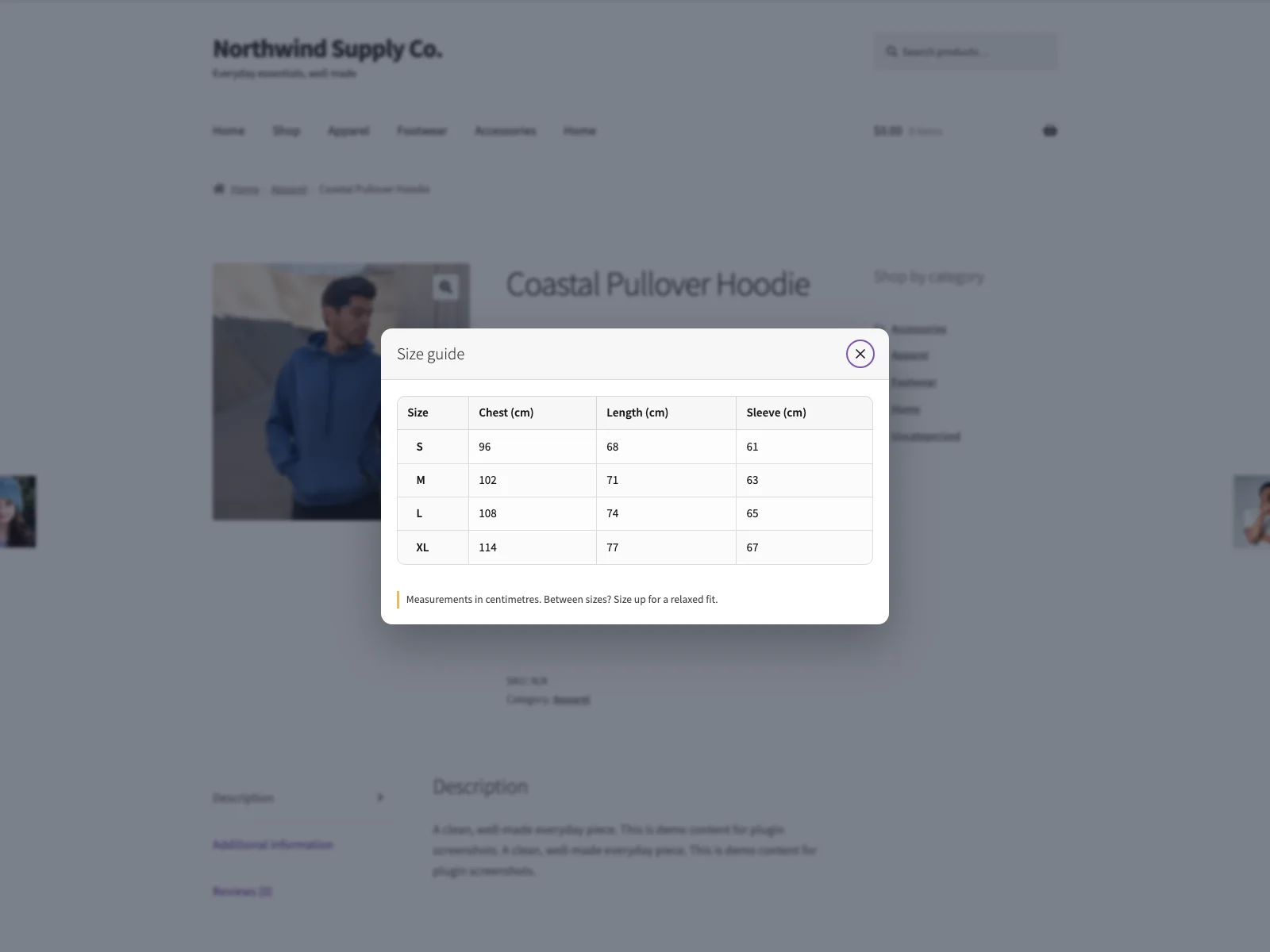 The size guide button sits right by add-to-cart and opens the assigned chart in an accessible modal.
Building and reusing charts
You build each chart once under WooCommerce, Size Guides as a labelled table: columns, rows and an optional caption. Because the chart is a reusable record rather than a per-product field, the same chart can cover dozens of products. Most catalogues have a handful of real size systems, not one per product: a men’s shirt chart, a women’s footwear chart and a kids’ chart between them can cover an entire range. Update the chart once and every product using it reflects the change immediately, which keeps the data consistent and the admin work small.
Tip: Build each chart once and assign it to many products. Updating one shared chart updates every product using it, which beats maintaining fifty near-identical one-offs that drift apart.
Assigning a chart to a product
On each product, a Size guide tab appears under Product data with a single select: pick the chart that applies, or leave it blank to hide the guide on that product. That is the whole assignment step. The blank option is deliberate: leaving it empty is how you tell Sizer to render nothing, which is exactly what you want on unsized products.
The shopper-facing modal
On any product with a chart assigned, the shopper sees the size guide button just below the add-to-cart button. Selecting it opens the chart in a native <dialog> element with a labelled heading, a close button and keyboard support, and the modal respects prefers-reduced-motion for shoppers who have asked the browser to reduce animation. The stylesheet is driven by CSS custom properties (accent colour, radius, dialog colours) and ships with a dark-scheme variant, so the modal sits comfortably in a light or dark theme. If you need to go further, the storefront templates can be overridden from a sizer/ folder in your theme.
The two settings that matter
Sizer keeps configuration to the essentials. On one settings screen you control the trigger label (the clickable text on the product page) and the modal title (the heading inside the dialog). Both default to “Size guide”, and short labels like “Size chart” or “Find my fit” read well next to the price. Leave them as they are and the guide works out of the box.
Privacy and footprint
Sizer makes no external requests and loads no remote scripts, fonts or stylesheets. Your charts and the button and heading settings are stored in your own WordPress database, and each product’s assigned chart is kept in that product’s post meta. No data leaves your site and nothing is tracked, which keeps the plugin out of your privacy policy and off the critical path of your page load.
Setting it up
Getting the guide live takes a few minutes:
- Install the plugin from Plugins, Add New, or upload it to
/wp-content/plugins/plogins-sizer. WooCommerce must be installed and active. - Activate it.
- Go to WooCommerce, Size Guides to create your first chart and, if you want, adjust the button label and modal heading.
- Open a sized product, go to Product data, Size guide, and assign the chart.
That is it. The size guide button now appears after add-to-cart on that product, and any product you leave unassigned shows nothing at all.
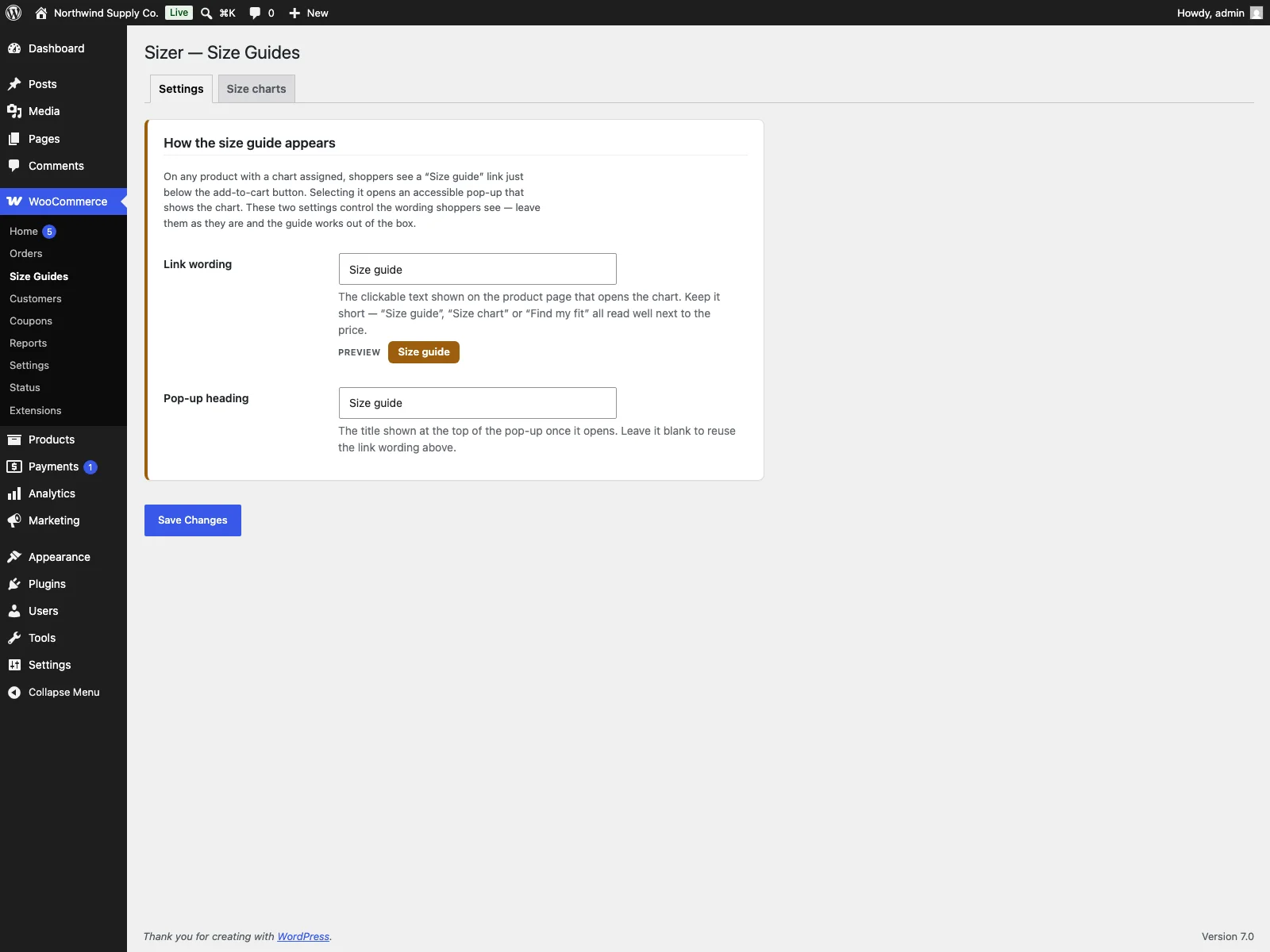 Build and edit reusable charts in wp-admin under WooCommerce, Size Guides.
Practical tips for charts that actually help
A plugin gives you the mechanism; a useful chart is down to you. A few pointers:
- Measure the garment, and say how. A caption that explains where to measure (flat across the chest, around the natural waist) turns a table of numbers into instructions a shopper can follow. Ambiguous numbers cause as many returns as no chart.
Warning: Ambiguous measurements cause as many returns as no chart at all. Add a caption explaining where to measure so a table of numbers becomes instructions a shopper can actually follow.
- Pick one unit system per market, or offer both. A chart in centimetres helps no one shopping in inches. Decide based on where you sell, and keep the columns labelled clearly.
- Keep charts few and shared. Resist building a near-identical chart per product. A handful of well-maintained charts assigned widely is easier to keep correct than fifty one-offs that drift apart.
- Match the size names to the variation names. If your product dropdown says S, M, L, the first column of the chart should too, so the shopper can connect the chart row to the option they select.
- Leave non-sized products blank. A mug or a gift card has no size. Leaving the assignment empty keeps the product page clean and honest.
Sizer versus default WooCommerce
Core WooCommerce has no size chart feature at all. Here is the difference for size charts specifically:
| Capability | Default WooCommerce | Sizer |
|---|---|---|
| Size chart on the product | None | Reusable labelled-table charts |
| Reuse a chart across products | n/a | Yes, build once and assign to many |
| Assign a chart per product | n/a | Yes, from the Size guide product tab |
| Where it appears | n/a | Button after add-to-cart, opens a modal |
| Accessibility | n/a | Native dialog, labelled heading, keyboard, reduced-motion |
| Products with no chart | n/a | Renders nothing, no empty button |
| Theming | n/a | CSS custom properties and theme template overrides |
| External requests / tracking | n/a | None; data stays in your database |
| Cost | Free (core has none) | Free, GPL, open source |
Room to grow
The free plugin is a complete size-guide flow, not a teaser: reusable charts, per-product assignment, the accessible modal and the graceful empty state are all included. It also exposes filters that leave room for richer behaviour on top: a sizer/match_size filter and a SizeMatcher service for matching a shopper’s entered measurements to the right chart row, and hooks for unit switching on a rendered chart. If your catalogue grows into needing a “find my size” helper or centimetre-to-inch toggles, the foundation for that is already in place rather than bolted on later.
The short version
A size chart is one of the most direct ways to cut returns and raise confidence on sized products, and WooCommerce ships with none, so you need a plugin. A good one keeps the chart data reusable, assigns it per product, shows it in an accessible modal right by add-to-cart, and renders nothing when a product has no chart. Sizer does exactly that for free: build each chart once under WooCommerce, Size Guides, assign it on the product’s Size guide tab, and the guide appears where it helps most, with no external requests and your data kept on your own site.