WooCommerce custom product tabs: shipping, care and size guides
By Mariusz Szatkowski · Updated: 2026-09-11
The single product page is where shoppers decide whether to buy, and it fills up fast with information that does not belong in the headline description: shipping times, return windows, care instructions, size charts, warranty notes. Push all of that into the description and the page becomes a wall of text that buries the one detail a shopper actually wants. Leave it out and the questions land in your inbox instead. Custom product tabs give that supporting information a clean, predictable home. This guide explains what custom tabs are, why reusable store-wide tabs save you real work, what a good tabs tool needs, and how the free Tabby plugin adds them to WooCommerce.
What custom product tabs are
A custom product tab is an extra tab on the WooCommerce single product page that holds content you define, shown next to the tabs WooCommerce already provides.
By default WooCommerce gives every product three tabs: Description, Additional information, and Reviews. Description is your sales copy, Additional information lists attributes and weight or dimensions, and Reviews collects customer feedback. None of them is the right place for a returns policy or a washing guide. A custom tab adds a fourth, fifth, or sixth tab for content that has its own natural heading. Instead of stuffing shipping detail and a care guide into the bottom of the description, you give each topic its own labelled tab that a shopper can open when they want it.
The result is a product page that stays scannable. The description does the selling, and the supporting detail sits one click away, organised and easy to find rather than scattered through a long block of prose.
Why reusable, store-wide tabs help
Reusable tabs are defined once and shown across your catalogue, rather than retyped on every product.
This is the distinction that matters most. Most of the information that lands in a custom tab is identical from product to product. Your shipping policy, returns window, and general care advice rarely change between items in the same range. Editing that text into hundreds of product descriptions by hand is slow work, and it goes stale the moment the policy changes, because now you have hundreds of copies to find and update.
Store-wide reusable tabs remove that problem:
- Edit once, update everywhere. Change your returns policy in one place and every product reflects it on the next page load.
- Stay consistent. No drift between products caused by copy and paste, half-finished edits, or an older template that nobody remembered to revisit.
- Save time on new products. A new item inherits your shared tabs automatically, so you only write what is genuinely product-specific.
- Reduce support questions. Shipping, sizing, and care answers sit on the page, where shoppers look before they message you.
The trade-off to be aware of is that a single store-wide tab shows the same content everywhere, which is exactly what you want for a shared policy and not what you want for a measurement chart that differs by category. A good tabs tool gives you the shared case for free and a way to scope the rest, which is where the line between a free plugin and a paid add-on usually falls.
Warning: A single store-wide tab shows the same content everywhere. That is right for a shared policy, but a measurement chart that differs by category needs a scoped tab, not a store-wide one that would show the wrong figures on half your catalogue.
Tabs worth adding to a product page
The best custom tabs answer a question a shopper has before buying, not after. Common examples include:
- Shipping and returns - delivery times, costs, and how to send something back.
- Size guide - measurements, a sizing chart, or fit notes for clothing and footwear.
- Care instructions - washing, storage, or maintenance details for the product.
- Warranty and guarantee - what is covered and for how long.
- Materials and ingredients - composition details for fashion, cosmetics, or food.
Each of these is a self-contained topic that does not belong in the headline description but still influences the buying decision. A dedicated tab keeps it accessible without overwhelming the page, and labelling it clearly means a shopper who is only there for the size guide can find it in one glance.
What a good tabs tool needs
Whether you build, buy, or install, a custom tabs solution for WooCommerce should cover a handful of fundamentals. Use this as a checklist:
- Reusable definition. Write a tab once and have it appear across the catalogue, not product by product.
- Safe content handling. Tab content is HTML on a live page, so it must be sanitised rather than trusted blindly.
- A clean on/off control. The ability to hide a tab without deleting its content, for seasonal or temporary information.
- Predictable placement. Custom tabs should sit alongside the native tabs without reordering or replacing them.
- Good neighbourliness. It should cooperate with your theme and with any other plugin that registers tabs, rather than fighting them.
- Clean storage. Tab definitions kept in a tidy, removable place rather than scattered across the database.
Notice what is not on that list: nothing about turning tabs into a page builder. A tabs tool that tries to embed video galleries, forms, and dynamic widgets in every tab tends to be heavier and more fragile than a tool that does one job well and leaves rich content to a deliberate, opt-in step.
How Tabby handles it
Tabby - Custom Product Tabs for WooCommerce is a free, open-source plugin built to do exactly this. You define your reusable tabs once and they appear on every single product page, after the native Description, Additional information, and Reviews tabs. There is no per-product editing to do for shared content, which is the whole point.
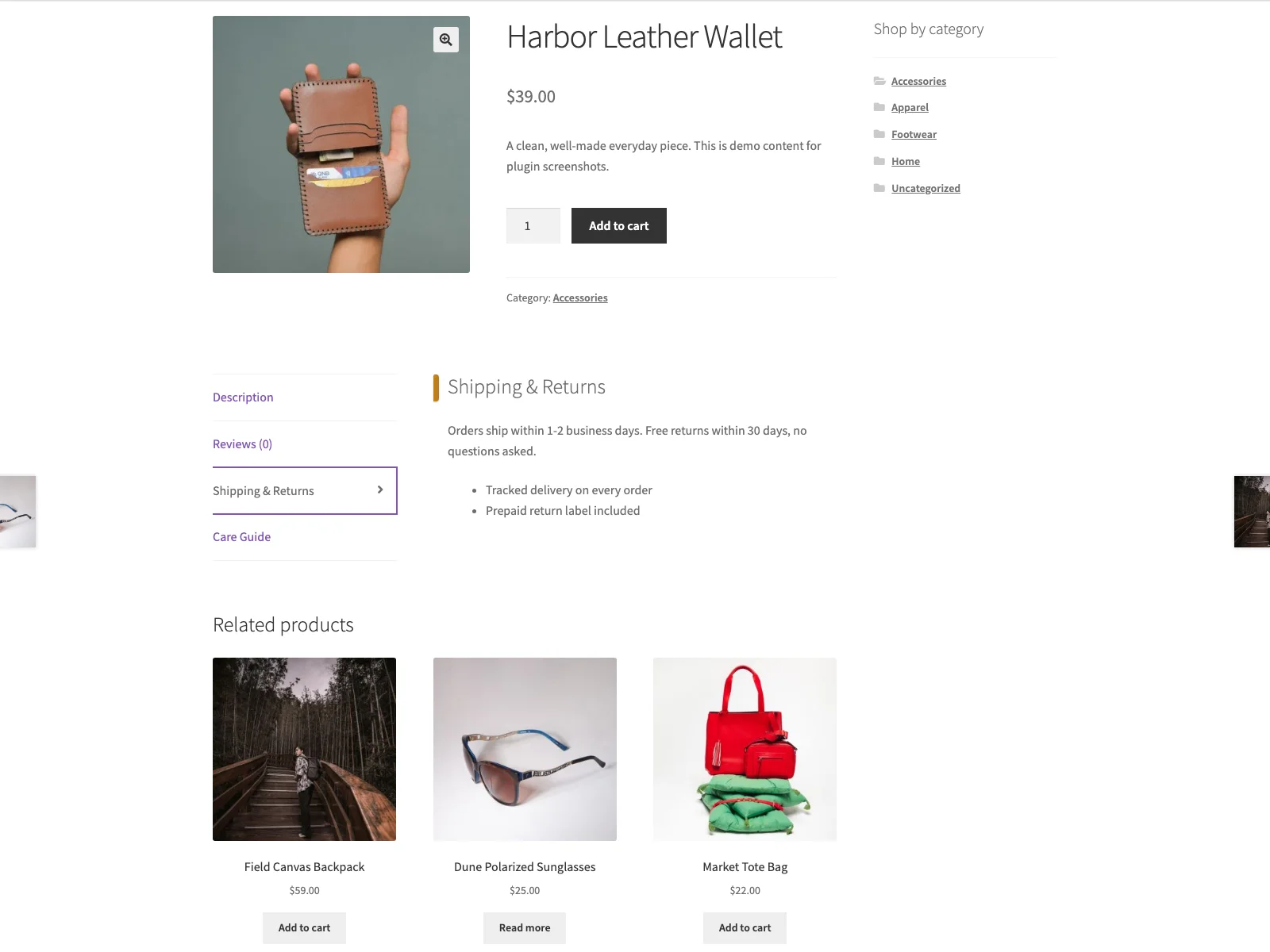 Custom Tabby tabs on the storefront single product page, sitting after the native WooCommerce tabs.
The admin screen
Tabby adds a settings screen under WooCommerce > Tabby Tabs. At the top is a master switch, Enable Tabby, that renders or hides every tab at once without deleting any of them, so you can take all your tabs offline during a sale or a migration and bring them straight back. Below it is a repeating list of tabs. Each tab is a title, a content box, and an Enabled toggle for that single tab. You add rows with an Add tab button and remove them with the cross on each row. A row left without a title is dropped when you save, so clearing a title is how you discard a tab. The screen follows core WordPress styling and respects the editor’s light or dark preference, so it looks like part of wp-admin rather than a bolted-on panel.
What goes in a tab
Each tab’s content box accepts the same limited HTML WordPress allows in post content through wp_kses_post: links, lists, headings, bold and italic text, images, blockquotes, and similar markup. That is enough to write a properly formatted shipping policy or a care guide with a linked size chart. Crucially, the content is sanitised twice, once when you save it and again when it renders, so a stray snippet pasted from elsewhere cannot inject a script or break the page. Scripts and unsafe tags are stripped automatically. The inline hint on the screen even shows an example, so you are not guessing at what is allowed.
Note: Tab content is sanitised twice, once when you save it and again when it renders, so a snippet pasted from elsewhere cannot inject a script or break the page. Scripts and unsafe tags are stripped automatically.
How tabs render on the storefront
On the front end, Tabby hooks the standard woocommerce_product_tabs filter at a late priority. Native WooCommerce tabs sit at priorities 10, 20, and 30; Tabby’s tabs start at 100 and count up, so they trail the native tabs and anything a theme or other plugin has registered. Your existing tabs keep their place and their order; Tabby only appends. Each tab renders its title as a heading followed by its sanitised content. A tab that is disabled, or that has no content once formatting is stripped, is simply not rendered, so empty placeholders never reach a shopper. The small stylesheet that styles the panels loads only on single product pages, not site-wide.
Note: Because Tabby hooks at a late priority, your custom tabs are added after the native WooCommerce tabs and anything your theme or other plugins registered, never replacing or reordering what is already there.
How and where it stores data
Tabby keeps everything in a single WordPress option, tabby_settings, plus a version marker, and both are removed cleanly on uninstall. It makes no remote calls, loads no third-party fonts or scripts, and sends no data off your site. The admin and storefront CSS and JavaScript it uses are bundled with the plugin and served from your own domain.
Setting it up
Getting tabs live takes a few minutes:
- Install the plugin from Plugins > Add New, or upload it to
/wp-content/plugins/plogins-tabby. WooCommerce must be installed and active. - Activate it.
- Go to WooCommerce > Tabby Tabs, make sure Enable Tabby is on, and add your tabs. Give each a clear title such as “Shipping & Returns” or “Size Guide” and fill in the content with simple formatting.
- Save. The tabs now appear on every single product page after the native tabs.
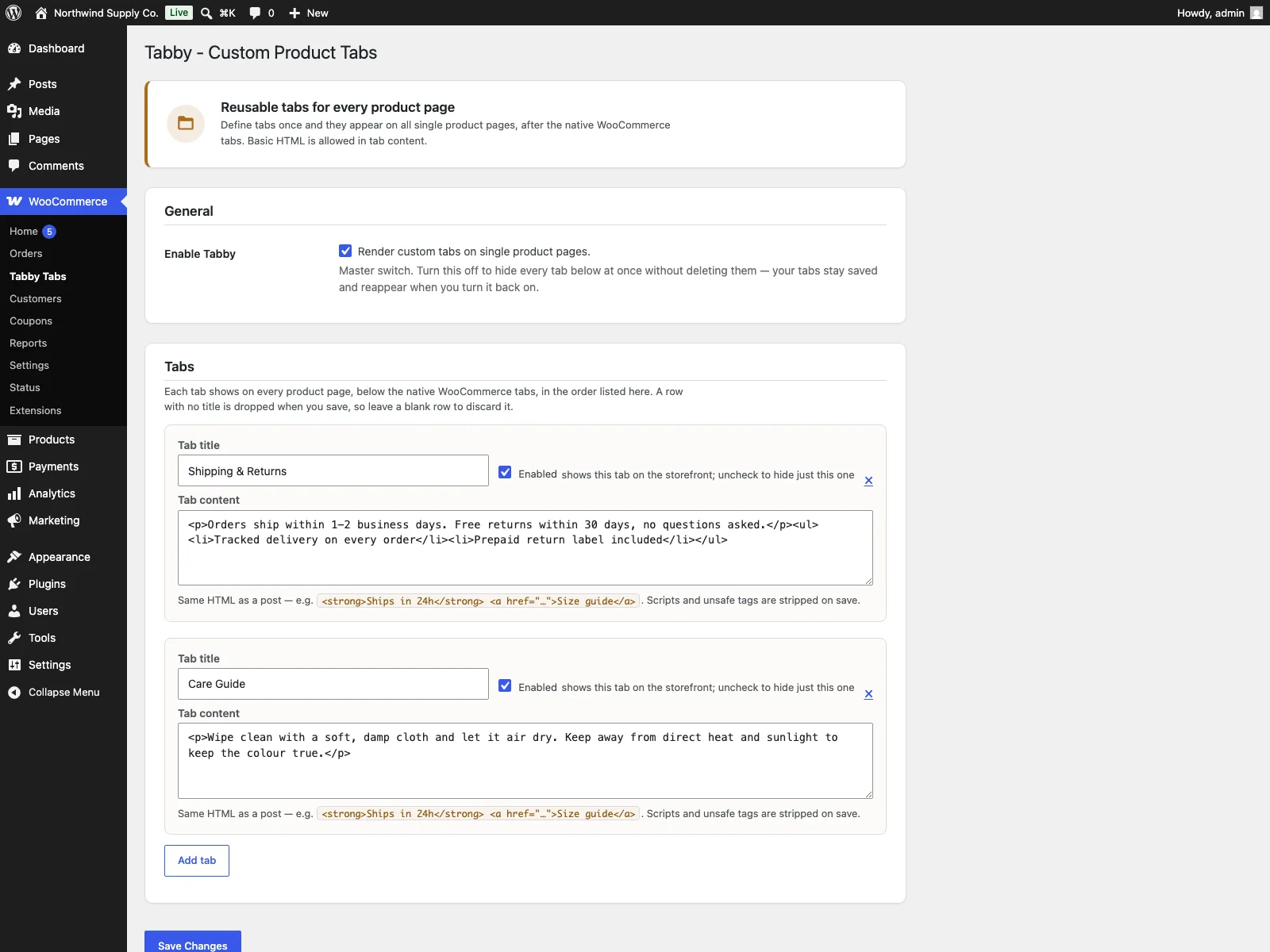 The wp-admin Tabby Tabs settings screen, where you define each reusable tab.
Keep tab titles short and predictable. “Shipping & Returns” and “Size Guide” read better than full sentences, and they line up neatly in the tab strip next to the native WooCommerce tabs.
Practical tips for good tabs
A plugin gives you the mechanism; the editorial decisions are yours. A few pointers that hold regardless of which tool you use:
- Lead with the question, not the policy. A tab labelled “Size Guide” earns more clicks than one labelled “Product Information.” Name the tab after what the shopper is looking for.
Tip: Name the tab after what the shopper is looking for. “Size Guide” earns more clicks than “Product Information.”
- Keep the shared tabs genuinely shared. Reuse only the content that is the same everywhere. A category-specific size chart belongs in a scoped tab, not a store-wide one that would show the wrong measurements on half your catalogue.
- Write for scanning. Short paragraphs, a few bold labels, and a bulleted list beat a dense block of prose. The whole reason the content is in a tab is so it can be read quickly.
- Audit the tab strip. Three or four well-chosen tabs are easier to use than eight. If two tabs cover the same ground, merge them.
- Keep policies in one source. When the shipping rules change, update the one tab. The payoff of reusable tabs only lands if you resist pasting the same text into individual descriptions out of habit.
Tabby versus default WooCommerce
WooCommerce ships three fixed tabs and no editor for adding your own. Here is the difference for custom tabs specifically:
| Capability | Default WooCommerce | Tabby |
|---|---|---|
| Add your own tabs | None built in | Reusable tabs defined under WooCommerce |
| Reusable across products | n/a | Yes, shown on every single product page |
| Safe HTML content | n/a | wp_kses_post, sanitised on save and on output |
| Turn a tab off without deleting | n/a | Per-tab Enabled toggle plus a master switch |
| Placement | Description, Additional information, Reviews | Appended after the native tabs at a late priority |
| Plays nicely with other tab plugins | n/a | Yes, existing tabs keep their place |
| Data on uninstall | n/a | Single option, removed cleanly |
| Cost | Free (no custom tabs) | Free; Pro adds scoping, ordering and rich content |
Free versus Pro
The free Tabby plugin is a complete tool for reusable, safe-HTML tabs shown on every product, with on/off control and tidy storage. Tabby Pro is a separate add-on that requires the free plugin to be installed and active; it extends Tabby rather than replacing it, and it is distributed through Freemius rather than the WordPress.org directory. Pro adds the scoping and presentation features that a larger catalogue tends to need: category rules to show a tab only on products in selected categories, conditional display by stock status and visitor role, tab order and icons to set a numeric sort order and a dashicon or emoji label per tab, and rich tab content that runs tab bodies through the WordPress shortcode and block pipeline. If your tabs are genuinely store-wide, the free plugin is the whole job; Pro is for when “the same tab everywhere” stops being enough.
The short version
WooCommerce gives every product three fixed tabs and no way to add your own, so shipping, care, sizing, and warranty detail either bloats the description or scatters into your inbox. Custom product tabs give that content a clean home, and reusable store-wide tabs let you write it once and update it everywhere instead of editing hundreds of products by hand. A good tabs tool needs reusable definitions, safe content handling, a clean on/off control, and placement that does not disturb existing tabs. The free Tabby plugin covers all of that, keeping every tab in one tidy place after the native WooCommerce tabs; Tabby Pro adds category rules, conditional display, custom order and icons, and rich content when a single shared tab everywhere is no longer enough.