WooCommerce trust badges: payment, delivery and guarantees
By Mariusz Szatkowski · Updated: 2026-10-28
A trust badge is a small confidence signal placed next to a buying decision. It is the row of little icons that says secure checkout, money-back guarantee or free shipping, sitting where the shopper is weighing up whether to part with their card details. The job of a badge is narrow and specific: answer a real concern at the exact moment it surfaces. Online, that concern is almost always some version of “is this safe, and what happens if it goes wrong?” A well-placed badge answers it before the shopper has to go looking. This guide explains what trust badges are, why they affect conversion, what a good badge solution needs to get right, and how the free Badgevo plugin adds a lightweight badge row to WooCommerce without external scripts or layout shift.
What trust badges actually are
It helps to separate two things that often get lumped together. A verification seal is a third-party mark, a security scanner logo or a payment network badge, that vouches for the store from outside. A trust badge in the sense most stores use is a reassurance signal: a short, honest statement of something true about your store, presented as an icon and a label. Secure checkout. SSL encrypted. Money-back guarantee. Free shipping. 24/7 support. These are not certifications you buy; they are facts about how you operate, shown where they matter.
The distinction matters because the two carry different risk. A reassurance badge is only as good as the promise behind it. “Money-back guarantee” is a powerful badge if you honour returns and a liability if you do not. The badge does not create the trust; it surfaces a commitment you already make. Treated that way, badges are one of the cheapest, lowest-risk improvements you can make to a product page.
Warning: A reassurance badge is only as good as the promise behind it. “Money-back guarantee” is powerful if you honour returns and a liability if you do not.
Why trust badges matter
Most abandoned carts are not abandoned because the shopper changed their mind about the product. They are abandoned because something near the decision raised a doubt that was never answered: a worry about payment safety, an unclear return position, a fear of hidden costs or simply unfamiliarity with the brand. A shopper who has never bought from you before is doing a quick, mostly subconscious risk assessment, and every unanswered question is a reason to close the tab.
Trust badges work because they answer those questions at the point of doubt, without making the shopper hunt through your footer or policy pages. Three things happen when the right badge appears in the right place:
First, the badge pre-empts the worry. A “secure checkout” or “SSL encrypted” signal next to the buy button addresses payment safety before the shopper has consciously formed the fear.
Second, the badge carries a promise cheaply. “Money-back guarantee” or “free shipping” communicates a key term of the sale in two words, far faster than a paragraph the shopper will not read.
Third, the badge signals a real store. A small, tidy row of relevant icons reads as a shop that has thought about the buyer, which is itself a trust signal for an unfamiliar brand.
The flip side is that badges only help when they are honest and restrained. A wall of generic, unbacked claims does the opposite: it reads as filler, dilutes the genuine signals, and can make a page look like a template rather than a real shop.
What a good trust-badge solution needs
Whether you build, buy or install, a trust-badge tool for WooCommerce should cover a handful of fundamentals. Use this as a checklist:
- Placement at the decision point. Badges belong near the add-to-cart button, the cart or the checkout, not buried in the footer where the decision has already been made.
- No performance cost. Badges are a reassurance, not a feature. They should not add storefront JavaScript, block rendering or shift the layout as the page loads, because a janky page is itself a trust problem.
- No external requests. Loading badge images from a third-party server adds a dependency, a tracking surface and a point of failure. Badges should be served from your own site.
- Selectable, honest signals. You choose which badges to show so they match what is actually true of your store, rather than displaying a fixed set you cannot stand behind.
- Accessibility. Each badge needs an accessible name, the row should be marked up as a list, and any animation should respect a visitor’s reduced-motion preference.
- Visual fit. The badges should inherit your theme so the row looks at home in a light or dark design rather than pasted on.
- Flexible placement. A shortcode or block so you can put the same row somewhere custom when the default position is not where you want it.
Notice what is not on that list: dozens of options, animations and campaign tooling. A badge row is a small thing done well. The risk with badge plugins is over-building the page into a campaign builder, which is exactly the heaviness a trust signal should avoid.
How Badgevo handles it
Badgevo for WooCommerce is a free plugin that adds exactly this kind of badge row, deliberately kept light. It shows a row of secure-checkout badges after the add-to-cart button on single product pages, under a short heading like “Guaranteed safe checkout”. The premise is simple: put a reminder that the store is safe right where the shopper decides whether to buy.
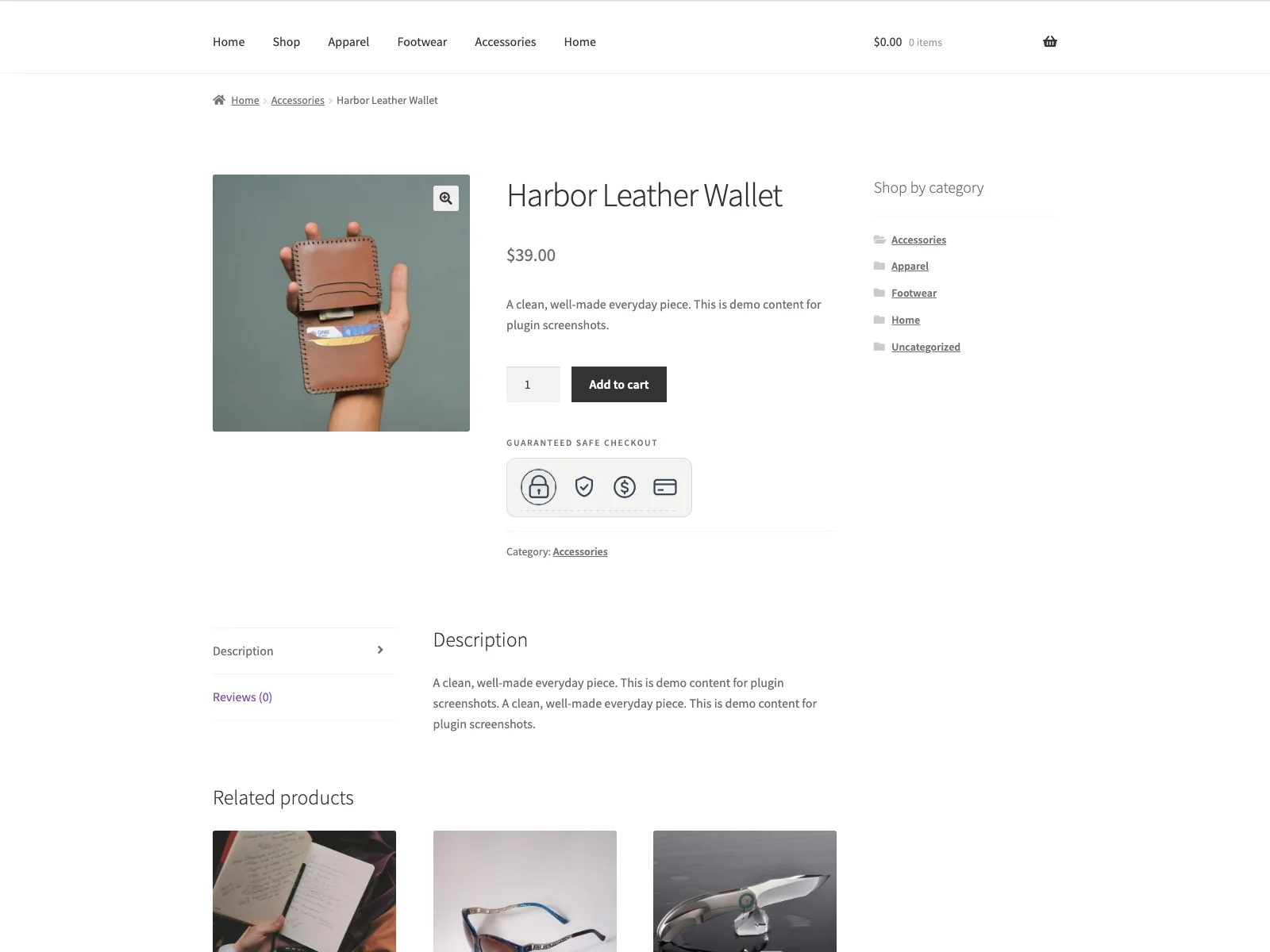 The Badgevo badge row on the storefront, sitting right after the add-to-cart button where the shopper is deciding whether to buy.
The badges
Badgevo ships with ten hand-drawn inline SVG badges: secure checkout, SSL encrypted, money-back guarantee, verified store, free shipping, card payment, digital wallet, 24/7 support, privacy protected and satisfaction. You pick which of these to display, so the row reflects what is genuinely true of your store rather than a fixed set. Because the icons are inline SVGs, they scale crisply on any screen and follow a single colour you set, via currentColor, so the whole row matches your brand by changing one value.
Built to stay out of the way
The plugin is engineered around not slowing the store down or undermining the very trust it is meant to build:
- No external requests. Every badge is an inline SVG served from your own site, so nothing loads from third parties and there is nothing for a privacy-conscious shopper to worry about. The plugin makes no network calls, sends no email and stores no visitor or customer data.
- No JavaScript on the storefront. The badge row is plain CSS, so it does not add a script to the page or cause layout shift as the page loads. Your Core Web Vitals stay where they were.
Note: Every badge is an inline SVG served from your own site, so nothing loads from third parties. The plugin makes no network calls, sends no email and stores no visitor or customer data.
- Accessible. Each badge has an accessible name and the row is marked up as a list. The small hover animation is skipped for visitors who set
prefers-reduced-motion. - Inherits your colour. Set one icon colour and every badge follows it, so the row reads as part of your theme in both light and dark designs.
Placement and the shortcode
By default the row renders after the add-to-cart button on the single product page, which is the highest-value spot for a payment-safety reminder. When you want it somewhere else, the [trust_badges] shortcode renders the same row anywhere shortcodes are supported, for example inside a cart or checkout template, a landing page or a block. That keeps the default behaviour zero-config while leaving the door open for custom placement.
Setting it up
Getting the badge row live takes a couple of minutes:
- Upload the plugin to
/wp-content/plugins/badgevo, or install it via Plugins > Add New. WooCommerce must be installed and active. - Activate it.
- Go to WooCommerce > Trust Badges. There you enable the badges, write the heading (or leave it blank for icons only), pick which bundled badges to show, and choose the icon colour.
That is the whole setup. The settings page is the single place where you control the heading, badge selection and colour, and your choices are kept on your own site in one trust_settings option. When you delete the plugin it removes that option and its version marker cleanly, so it leaves nothing behind.
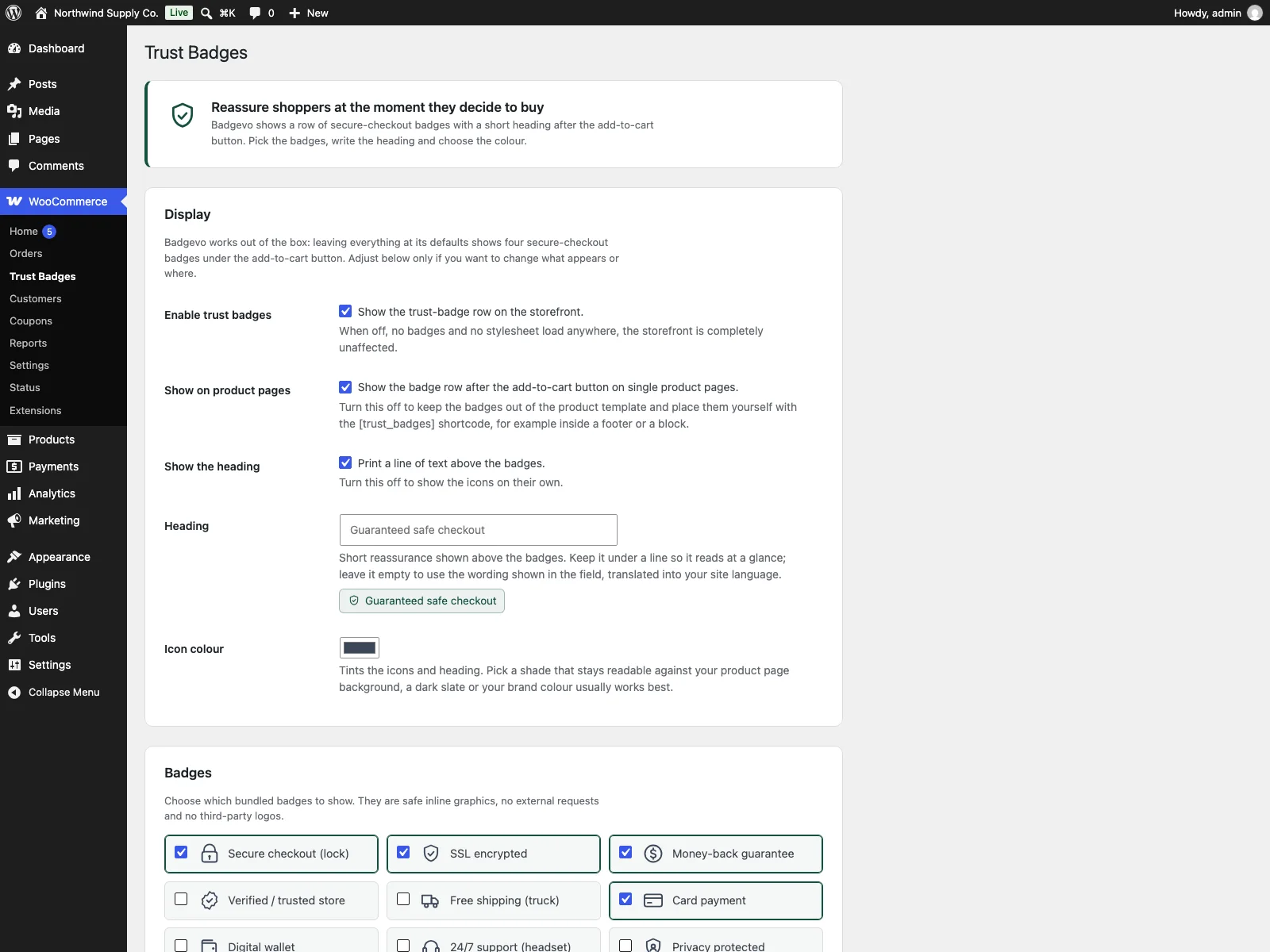 The WooCommerce > Trust Badges settings screen, where you set the heading, pick which badges to show and choose the icon colour.
Built to be extended
For developers and add-ons, Badgevo exposes a couple of hooks rather than locking the output down. The trust/badges_rendered action and data-trust-badge attributes give add-ons a privacy-safe way to attach analytics, and the trust/badge_library filter lets add-ons append their own safe inline SVG badges to the shared picker and renderer. The free plugin stays simple while remaining a clean base to build on.
Practical tips for using badges well
The plugin gives you the mechanism; using badges well is a matter of restraint and honesty.
- Show only what is true. Pick the badges you can stand behind. “Money-back guarantee” should mean you honour returns; “free shipping” should mean shipping is actually free, at least on the products where the badge shows. A badge that contradicts the shopper’s later experience does more harm than no badge at all.
- Keep the row short. Three to five well-chosen badges read as confidence. Ten read as noise and dilute the ones that matter. Choose the signals that answer your specific audience’s biggest worry, which is usually payment safety, then returns, then delivery.
Tip: Three to five well-chosen badges read as confidence; ten read as noise and dilute the ones that matter. Lead with the signal that answers your audience’s biggest worry, usually payment safety.
- Match the heading to the row. A short heading like “Guaranteed safe checkout” frames the icons. If your badges are about delivery and returns rather than payment, change the heading to fit, or leave it blank and let the icons speak.
- Put them where the doubt is. The default product-page position covers the most common case. If your checkout is where shoppers hesitate, use the shortcode to add a row there too.
- Do not let badges replace policy. A badge points at a promise; the promise still needs a real return policy, a visible delivery time and a working support channel behind it. Badges shorten the distance to those facts; they are not a substitute for them.
Badgevo versus default WooCommerce
WooCommerce has no built-in trust-badge feature. You would otherwise reach for static images dropped into the page, which usually means external image requests, manual styling and no accessibility work. Here is the difference for badges specifically:
| Capability | Default WooCommerce | Badgevo |
|---|---|---|
| Badge row near add-to-cart | None built in | Yes, after the add-to-cart button |
| Bundled badge set | None | Ten inline SVG badges to choose from |
| External requests | Depends on your images | None, badges served from your own site |
| Storefront JavaScript | n/a | None, CSS-only, no layout shift |
| Accessible markup | n/a | List markup, accessible names, reduced-motion aware |
| Inherits theme colour | n/a | Yes, one colour via currentColor |
| Custom placement | Manual templating | [trust_badges] shortcode anywhere |
| Settings screen | None | WooCommerce > Trust Badges |
| Display scheduling | None | PRO adds seasonal and campaign start/end dates |
| Cost | Free (no badge feature) | Free; PRO adds scheduling |
Free versus PRO
The free edition is a complete badge tool, not a teaser: the ten bundled badges, the configurable heading, the icon colour, the product-page row and the [trust_badges] shortcode are all included, along with the accessibility work and the developer hooks. Badgevo Pro adds seasonal and campaign display scheduling, so you can set start and end dates and run a badge row only during a sale, a holiday window or a campaign without having to remember to switch it on and off by hand. For most stores the free version is enough; scheduling is the reason to reach for PRO when your badges need to come and go with the calendar.
The short version
Trust badges are honest reassurance signals shown at the point of a buying decision, answering the shopper’s “is this safe?” before it becomes a reason to abandon. They only help when they are true, restrained and placed where the doubt lives, and they should never cost performance or call third-party servers. The free Badgevo for WooCommerce plugin adds a CSS-only row of ten inline SVG badges after the add-to-cart button, with a configurable heading, one-colour theming, accessible markup and a shortcode for custom placement, all served from your own site with no external requests. Pick a few badges you can stand behind, keep the row short, and let PRO handle scheduling when you need badges that follow the calendar.