WooCommerce order bump: one-click offers at checkout
By Mariusz Szatkowski · Updated: 2026-11-06
A WooCommerce order bump is a one-click offer on the checkout page: a single checkbox, placed just before payment, that adds one complementary product to the order. The shopper has already decided to buy, has filled in the address and chosen shipping, and is one step from paying. At that moment a small, relevant extra, such as a spare part or a care kit, does not need a product page or a second look. One tick adds it and the total updates.
What an order bump is
An order bump is one pre-selected extra product offered on the checkout with a single checkbox. It sits in a family of techniques that raise the value of an order, and the differences between them decide where each one belongs:
- An upsell replaces the product with a better or bigger one, usually on the product page (“the 1 kg bag instead of 500 g”).
- A cross-sell suggests related products, usually in the cart or on the product page, and the shopper browses and adds them.
- A bundle sells several products as one item at one price, decided before the shopper reaches the cart.
- An order bump adds one specific product to an order that is already being placed, on the checkout, with one click.
The order bump is the narrowest of the four. It offers no choice between products and no browsing, because the shopper is in “finish the purchase” mode, and a single yes-or-no question costs far less attention than a carousel of suggestions. If you want a wider set of related products in the cart, that is the job of product recommendations and cart cross-sells; if you want a fixed set sold together, see product bundles.
Where an order bump shows
An order bump belongs on the checkout, close to the payment step. Propono places it above the payment methods on the classic WooCommerce checkout, through the woocommerce_review_order_before_payment hook. Three reasons make that position work:
- The decision to buy is already made. The shopper is not comparing products any more, so a small add-on is not competing with the main purchase.
- The shipping cost is already paid for. A small extra product travels in the same parcel, which makes a low-priced item reasonable to add.
- The total is visible right there. The order review sits above the payment block, so the shopper sees the new total update immediately after ticking.
The checkout is also the most sensitive page in the store. Anything placed there must load fast, must not move the layout and must never put the payment at risk.
What a good order bump needs
Built in-house or installed as a plugin, an order bump for WooCommerce must get these right:
- Native totals. Adding the product must go through the WooCommerce cart so that taxes, shipping, coupons and the gateway amount are recalculated by WooCommerce itself, not by a custom total that can drift.
- Recalculation before payment. The amount sent to the payment gateway must already include the bump, or the shopper pays a different amount than the one shown.
- An explicit opt-in. The checkbox starts unticked, and nothing is added until the shopper ticks it.
- Clean removal. Unticking removes exactly the bump line, not a copy of the same product the shopper added on purpose.
- No duplicate offer. If the product is already in the cart as a normal line, the offer should not appear.
- A price that cannot be abused. A special bump price must not apply to ten units or to a cart that holds nothing else.
- No checkout slowdown. Scoped styles, no layout shift and no assets loaded on pages that do not need them.
How Propono configures an order bump
Propono for WooCommerce is a free plugin that adds exactly one order-bump offer to the classic checkout and keeps it deliberately small: no external service, no tracking, no custom totals. It uses the WooCommerce cart and the native update_checkout recalculation, and keeps its settings under WooCommerce > Order Bump.
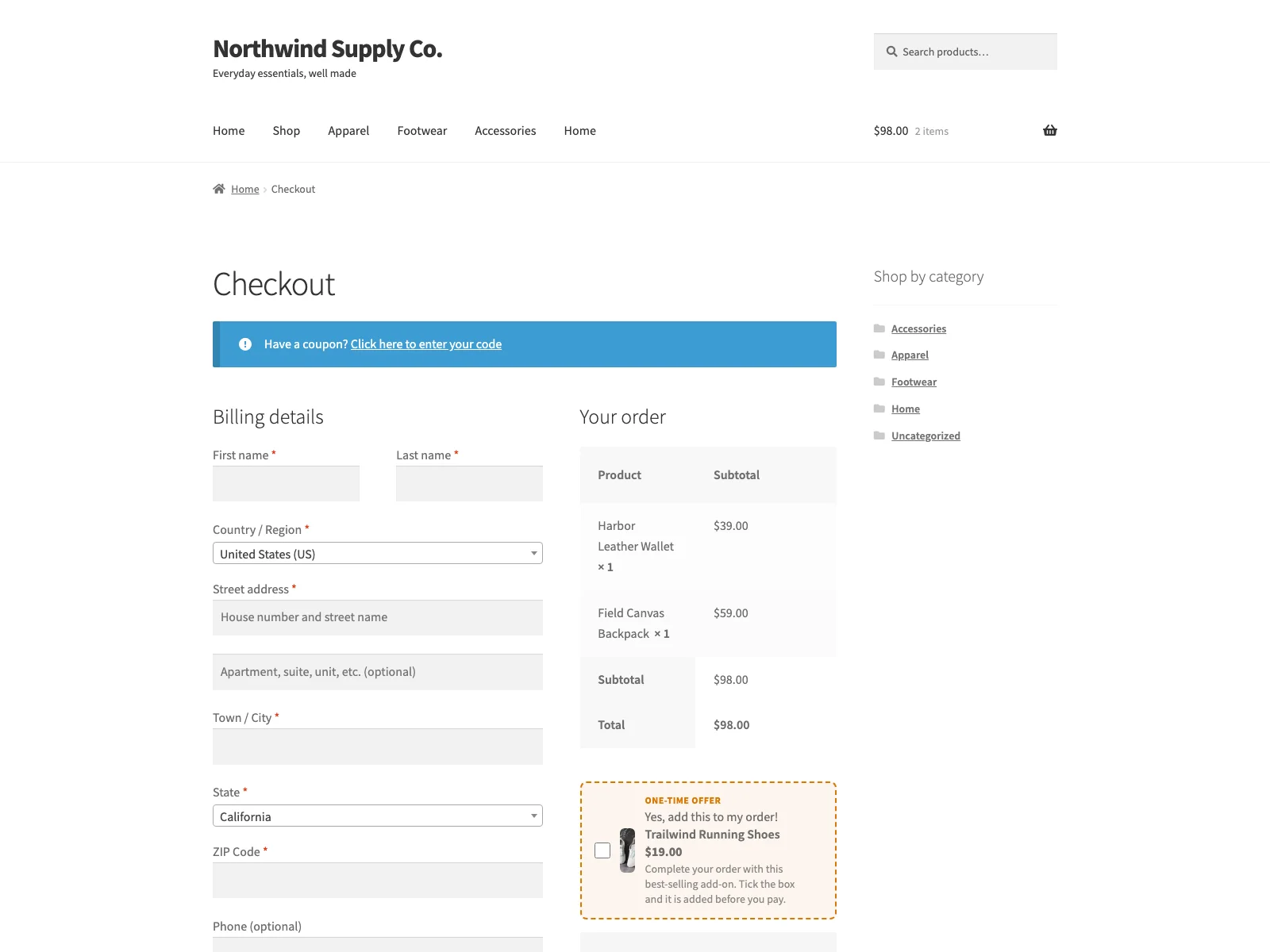 The order-bump offer above the payment methods, with a one-click checkbox that adds the product to the order.
The offer box
The offer renders as one box with five parts: the product thumbnail, a heading, the checkbox label, the product name with its price, and an optional description. Empty fields fall back to packaged defaults, so the heading reads “One-time offer” and the checkbox label reads “Yes, add this to my order!”, translated into the site language, until you write your own copy. An accent colour, set as a hex value, colours the box to match your theme; left empty, it keeps the packaged orange #d97706.
What happens on a tick
Ticking the box sends a request to add the product to the cart, tagged with a private flag so the bump line is never confused with a copy the shopper added themselves. The script then triggers WooCommerce’s own update_checkout event, so every total is recalculated before payment and the amount handed to the gateway already includes the bump. Unticking removes exactly that flagged line and recalculates again. If the request fails, the checkbox rolls back to the real cart state rather than showing a tick that did not happen.
The settings
All settings sit on one screen, WooCommerce > Order Bump, and are stored in one option:
| Field | Default | What it does |
|---|---|---|
| Enable order bump | off | Master switch. Off means no output, script or style on the checkout. |
| Bump product | none | One simple, purchasable, in-stock product. None keeps the offer hidden. |
| Heading | empty | Empty shows “One-time offer” (in the site language). |
| Checkbox label | empty | Empty shows “Yes, add this to my order!” (in the site language). |
| Description | empty | Optional text under the heading. |
| Override price | empty | Special price for the bump line, such as 19.00. Empty uses the product’s own price. |
| Accent colour | empty | Hex colour, the # is optional. Empty keeps the default orange. |
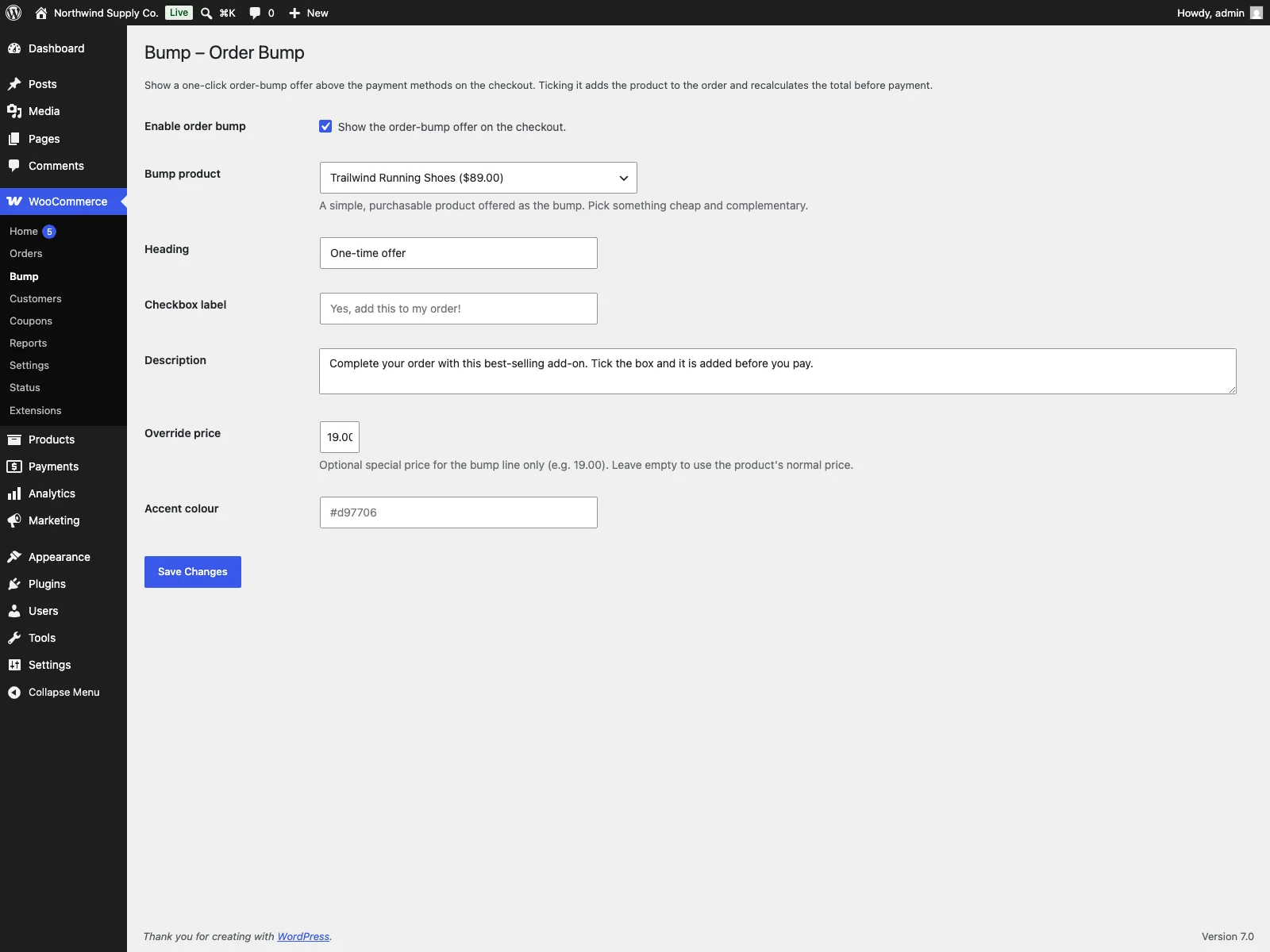 The Propono settings under WooCommerce: bump product, heading, checkbox label, description and optional special price.
The rules the offer follows
Propono enforces five rules in code:
- Simple products only. A variable product saved as the bump resolves to no offer, because a bump cannot ask the shopper to pick a variation.
- Not offered twice. When the bump product is already in the cart as a normal line, the offer is hidden.
- One unit at the special price. With an override price set, the bump line is forced back to one unit on the next recalculation.
- The special price needs another product. The override applies only while the cart holds at least one other, non-bump product. If the bump is the only item left, it is charged at its normal price.
- Hidden when unavailable. If the saved product loses its price or goes out of stock, the offer disappears and the settings screen marks the product “not available on the checkout” with a warning.
The styles and the script load only on the checkout, and only when a valid bump product is set. The plugin is HPOS compatible and stores nothing beyond its settings option and a schema marker; deleting it removes both. The full field reference, hooks and troubleshooting steps are in the Propono documentation.
Setting it up
- Install the plugin into
/wp-content/plugins/proponoor through Plugins > Add New, and activate it. WooCommerce must be active. - Go to WooCommerce > Order Bump and choose the bump product.
- Write the heading, the checkbox label and, optionally, a description and a special price.
- Tick Enable order bump and save.
- Open the checkout in a private window with a product in the cart and confirm the offer appears above the payment methods.
Choosing the product and writing the offer
The bump product decides whether the offer converts. Because Propono shows one bump on every checkout, whatever the cart holds, the product has to make sense next to most orders:
- Pick a cheap, universal add-on. Batteries, a cleaning kit, a gift wrap service set up as a product, a spare filter or a sample size fit almost any order of their category.
- Keep the price small relative to the order. A bump is an impulse decision. A product that costs as much as the main purchase needs a product page, not a checkbox.
- Write the benefit in the checkbox label. “Yes, add the care kit and protect the leather” says more than “Add product”.
- Use the description for the one fact that matters. Size, compatibility or what the shopper saves. One sentence is enough.
- Use the special price only when it is real. The override replaces the price shown in the box, so the shopper sees one number; make sure it is lower than the product’s normal price.
If your catalogue is so varied that no single product fits most orders, a checkout bump is the wrong tool, and cart cross-sells that react to the cart contents serve you better.
Measuring an order bump
Measure an order bump by its attach rate: the share of orders that contain the bump product. Propono has no built-in report and does not mark the bump line on the saved order, so the measurement happens in WooCommerce:
- Note the date you enabled the bump. That is the start of the test period.
- Count the orders that contain the bump product. WooCommerce Analytics shows orders and items sold per product for a date range, and the orders list can be searched by product.
- Divide by all orders in the same period. The result is the attach rate.
- Compare with a period before the bump. The bump product may have sold on its own before; the difference between the two periods is what the bump added.
- Watch the average order value and the conversion rate together. A bump that raises order value but lowers completed checkouts is costing you more than it earns.
Change one thing at a time (the product, the price or the copy) and give each version a comparable stretch of traffic. Pick a bump product that rarely sells on its own, so that its orders are easier to attribute to the checkbox. For tracking checkout events in an analytics tool, see WooCommerce ecommerce tracking.
Pitfalls to avoid
Check these before launch:
- Running it on the Checkout block. Propono renders on a classic-checkout hook. If your checkout page uses the Checkout block instead of the
[woocommerce_checkout]shortcode, no bump appears. - Caching the checkout page. The checkbox request needs a valid nonce from the checkout page. A checkout served from a page cache can carry an expired one, and the box un-ticks itself. Exclude the checkout from page caching.
- Choosing a product that is often in the cart already. The offer hides when the shopper has the product as a normal line, so a best-seller as the bump shows up rarely.
- Letting the product run out. A sold-out bump product hides the offer silently on the storefront; the warning appears only in the settings screen.
- Offering an irrelevant product. One store-wide bump next to an unrelated order reads as noise and erodes trust at the most sensitive step.
- Overloading the checkout. One offer is the format. A checkout stacked with offers, fees and banners slows the decision it is meant to speed up. If you also add checkout fees, keep both clearly labelled.
What Propono does not do
Propono handles one offer, with these limits:
- One bump for the whole store. It is offered on every checkout; there are no conditions by cart contents, category or total.
- No percentage discount. The special price is a fixed amount, and ticking always adds one unit.
- No variable products. Only published simple products with a price and stock can be the bump.
- A 200-product picker. The product list loads the first 200 simple products by title, so in a larger catalogue some products cannot be picked.
- No Checkout block support. The offer appears on the classic, shortcode-based checkout only.
- No reporting. Measurement happens in WooCommerce, as described above.
Propono versus default WooCommerce
WooCommerce has cross-sells and upsells on product and cart pages, but no checkout order bump:
| Capability | Default WooCommerce | Propono |
|---|---|---|
| One-click offer on the checkout | None | One checkbox above the payment methods |
| Recalculation before payment | n/a | Native update_checkout, gateway amount includes the bump |
| Special price for the offer | n/a | Optional fixed override, one unit, needs another product in the cart |
| Duplicate protection | n/a | Hidden when the product is already a normal cart line |
| Editable copy and colour | n/a | Heading, checkbox label, description, accent colour |
| Assets on the checkout | n/a | Loaded only on the checkout, only with a valid bump product |
| Checkout block | n/a | Not supported, classic checkout only |
| Cost | Free (no order bump) | Free |
The short version
An order bump is one complementary product offered with a single checkbox on the checkout, just before payment, when the shopper has already decided to buy. It works when the product is cheap, relevant to most orders and added through native WooCommerce totals, and it fails when it is irrelevant, cached, or stacked with other offers. The free Propono for WooCommerce plugin adds that one offer above the payment methods on the classic checkout, recalculates totals before payment, protects the optional special price against abuse and hides itself when the product is unavailable. Measure it by attach rate in WooCommerce, and change one variable at a time.