WooCommerce product bundles: sets, kits and discounts
By Mariusz Szatkowski · Updated: 2026-10-28
A product bundle is a set of products sold as one offer: a starter kit, a care pack, a camera and the lens and bag that go with it, or a simple “frequently bought together” group. The point is to help the shopper buy the right combination in one move, without hunting through the catalogue for the companion items, and to lift the average order value while doing it. WooCommerce, out of the box, has no concept of this. It can sell single products and it can sell variations of a product, but it has no native way to say “these three things belong together, add them as a set, and knock something off the price for buying them together.” This guide explains what a bundle actually is, where it differs from a variation, what a good bundling tool needs, and how the free Bundaro plugin adds a frequently bought together box to your product pages.
What a product bundle actually is
It helps to be precise, because “bundle” gets stretched to cover several different things. In the sense that matters here, a bundle is a named group of separate products presented as one buyable offer. The shopper sees a main product and the companions that pair well with it, and a single button that adds the whole set to the cart. Behind the scenes those are still individual WooCommerce products with their own stock, prices and pages. The bundle is the relationship between them plus the offer wrapped around it, not a new merged product that replaces the originals.
That distinction has consequences. Because the items stay separate, each one keeps its own inventory and still appears in the catalogue on its own. You are not duplicating products or maintaining a parallel “kit SKU” that drifts out of sync with the parts. You are linking products that already exist and deciding what the customer pays when they take the set.
Bundle or variation? The decision that trips stores up
The most common modelling mistake in WooCommerce is reaching for a variation when the situation calls for a bundle, or the reverse. The rule is simple once stated plainly.
Use a variation when the shopper picks one version of the same product. A t-shirt in small, medium or large. A mug in black or white. There is one product, and the customer chooses an option; they end up with a single item.
Use a bundle when the offer combines separate products that each stand on their own. A phone plus a case plus a screen protector. A skincare routine of three distinct products. A coffee machine and the beans and the descaler. The customer ends up with several items, bought together.
Getting this right keeps inventory and fulfilment honest. Variations share a parent and report stock per option; bundled products keep their own stock and are picked and packed as the individual items they are. If you force a bundle into a variation, you lose per-item stock tracking and the ability to sell the parts separately. If you force a variation into a bundle, you create needless products and confuse the catalogue. Decide based on whether the shopper is choosing a version or buying a combination.
Warning: Force a bundle into a variation and you lose per-item stock tracking and the ability to sell the parts separately; force a variation into a bundle and you create needless products that confuse the catalogue.
Why bundles matter
A good bundle does two jobs at once. For the shopper it removes a decision: instead of working out which case fits the phone, or which descaler suits the machine, they are shown the companions that go together and can take them in one click. That is a genuine convenience, and convenience converts. For the store it lifts average order value without discounting the whole catalogue or running a sale. A modest saving on a sensible set is often enough to move a shopper from one item to three, and the saving is paid for several times over by the larger basket.
Bundles also do quiet merchandising work. They surface products a shopper might never have searched for, they signal “these belong together” in a way a plain related-products grid does not, and they let you present a considered offer rather than leaving the cross-sell to chance. The “frequently bought together” pattern is familiar to shoppers from the largest stores online precisely because it works.
What a good bundling tool needs
Whether you build, buy or install, a bundling tool for WooCommerce should cover a handful of fundamentals:
- Link existing products. Build the set from products you already sell, without creating duplicate “kit” SKUs that drift out of sync.
- Add the whole set in one action. A single button that drops the main product and every companion into the cart together.
- An optional, clear discount. A saving you can apply to the set, shown so the shopper understands what buying together gets them.
- Honest inventory. The bundled items keep their own stock; nothing is double-counted or hidden.
- Control over placement. The box appears where it helps, with the option to place it manually elsewhere.
- Editable wording. The box title, button label and discount line should be yours to phrase, and translatable.
- A light footprint. No layout shift as the box loads, no heavy scripts, and a clean removal when you uninstall.
Notice what is not on that list: a sprawling configuration screen. The strength of a frequently bought together box is its simplicity. Every extra field between the shopper and the button is a reason to abandon.
How Bundaro handles it
Bundaro for WooCommerce is a free, open-source plugin that adds exactly this. It places a frequently bought together box under the product summary that lists the bundled products, and an “Add bundle to cart” button that adds the main product plus every linked item to the cart at once. You build a bundle by linking any number of products to a product and, if you want, setting a discount. The customer sees one offer; your store still knows which separate products belong to the set.
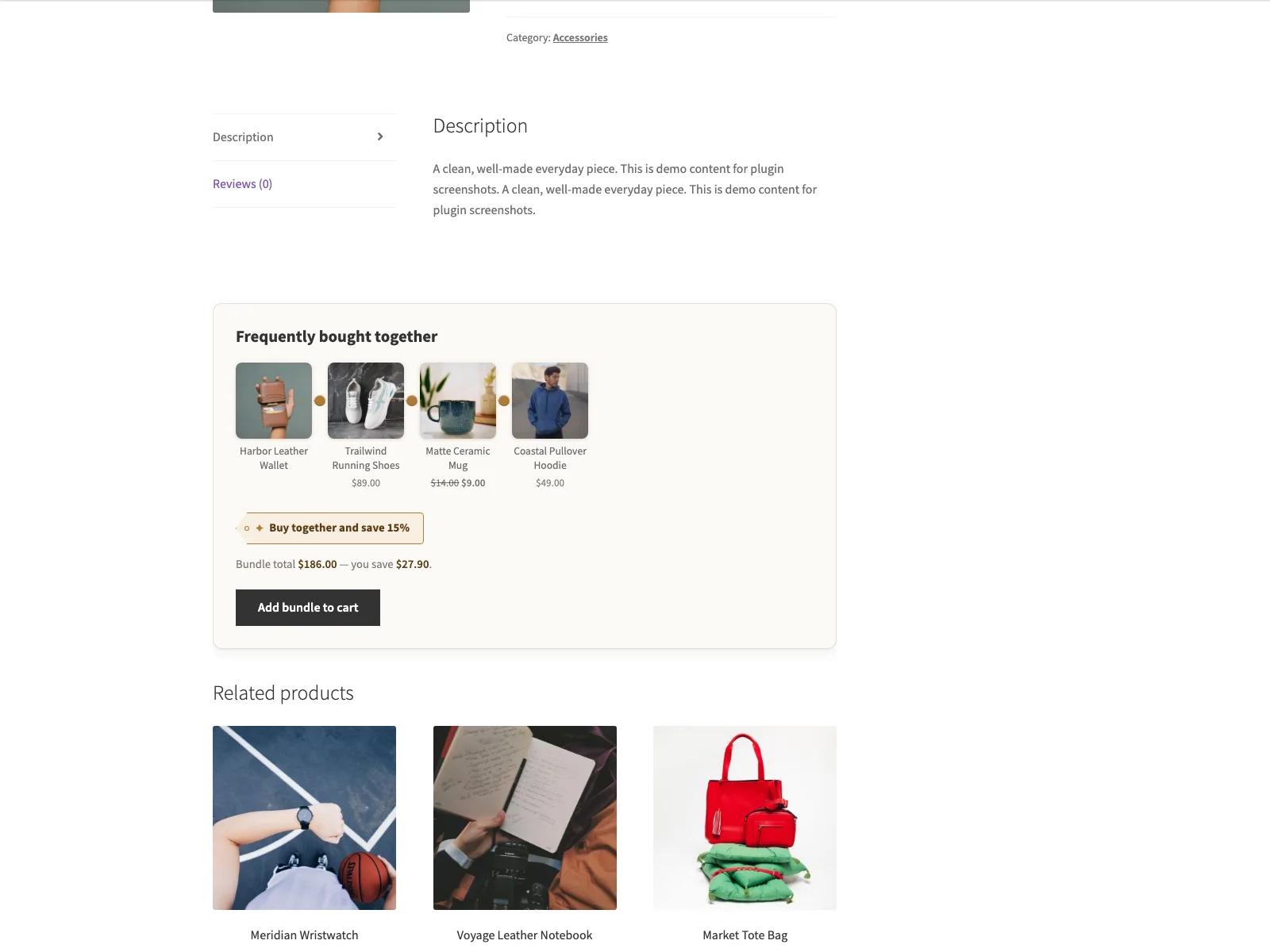 Bundaro lists the companion products and adds the whole set to the cart in a single click.
The discount, and how it reaches the cart
The discount is optional and set per bundle as a percentage. How it appears in the cart is a global choice you make under WooCommerce > Bundle, with two modes. Single cart fee adds one negative line, for example “Bundle discount −$12.00”, which is the simplest and clearest option and the right default for most stores. Per-item price adjustment lowers the price of each bundled product instead, which suits stores that need the discount reflected on every line and in per-product tax. Either way, an optional savings line on the box can spell out the bundle total and the exact amount saved, which is a strong nudge to take the whole set.
Where the box renders, and the shortcode
By default the box renders automatically below the product summary on single product pages. If you would rather place it yourself, the plugin provides a [bundle] shortcode that renders the box wherever the current product is known, and [bundle id="123"] to render a specific product’s bundle anywhere on the site. Turn off “Show on product page” under WooCommerce > Bundle and the box appears only where you drop the shortcode.
The details that keep it clean
A few behaviours matter in practice. The box hides itself when a product has no bundle left to show, and deleted or missing bundled products are simply skipped rather than rendering a broken row. The box title, button label and discount-line label are all editable and translatable, so the wording matches your store and language. Bundle definitions are stored as product meta, not custom database tables, so there is nothing extra to maintain and the data lives with the product it belongs to. The storefront box is server-rendered with one small stylesheet and no JavaScript or jQuery, images reserve their space so the box does not shift the layout as it loads, and it follows the visitor’s dark-mode preference. Every setting carries a keyboard-reachable “?” help bubble, and the plugin uninstalls cleanly, removing its options and stored bundle definitions.
Setting it up
Getting a bundle live takes a few minutes:
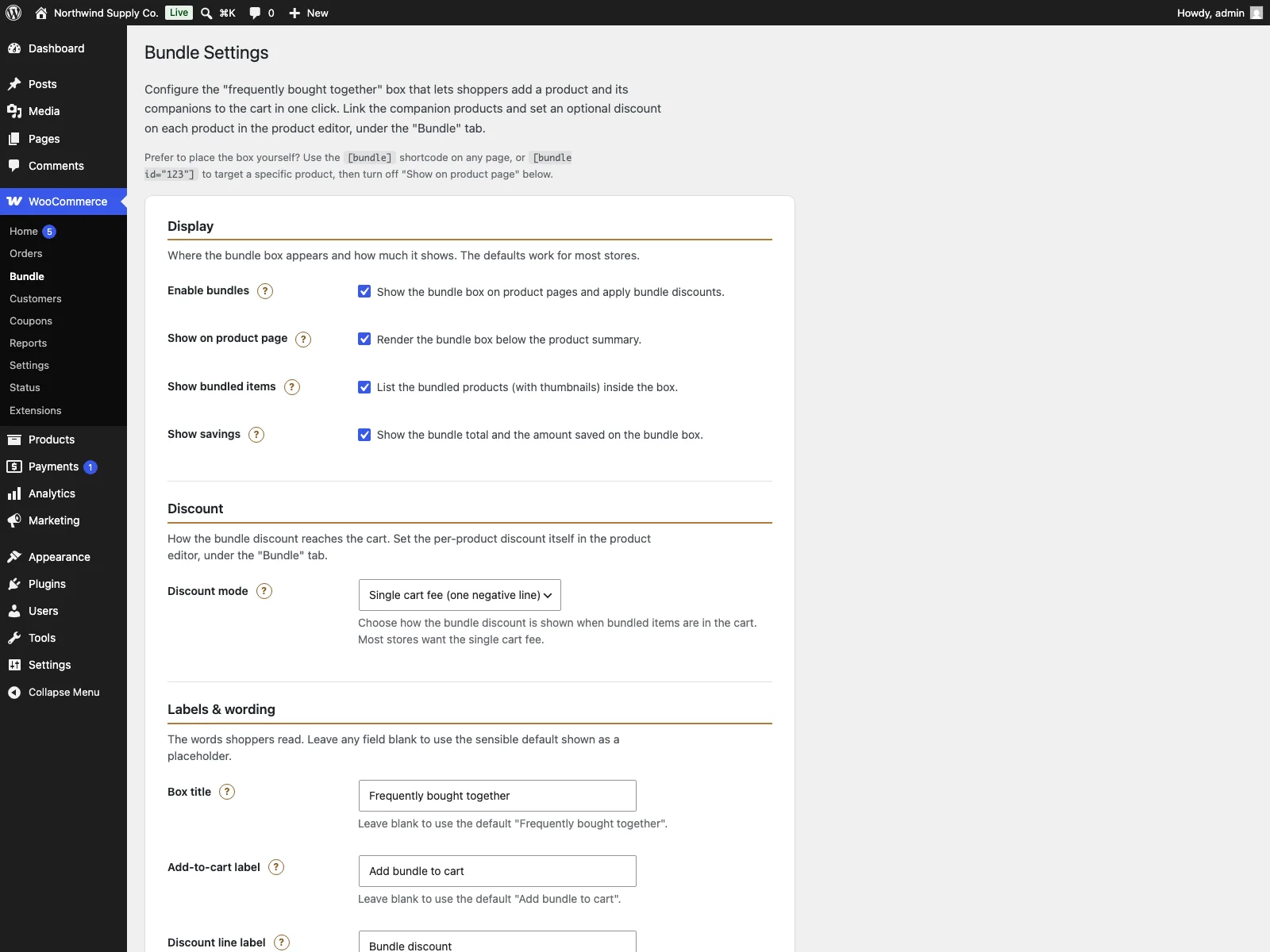 The Bundaro admin controls the discount mode, the savings line and the editable box labels.
- Install the plugin from Plugins > Add New, or upload it to
/wp-content/plugins/bundaro. WooCommerce must be installed and active. - Activate it.
- Edit a product, open the “Bundle” tab, enter the bundled product IDs and an optional percentage discount, then save.
- Adjust the global options under WooCommerce > Bundle: the discount mode, whether to list the bundled items with thumbnails, whether to show the savings line, and the box title, button and discount labels.
The defaults work for most stores, so step three is the only one you strictly need. Once a product has a bundle, the box appears under its summary and the “Add bundle to cart” button is live.
Tip: The defaults work for most stores, so linking the products in the product’s Bundle tab is the only step you strictly need before the box goes live.
Practical tips for bundles that sell
A plugin gives you the mechanism; the merchandising is yours. A few pointers:
- Bundle things that genuinely belong together. The strongest sets answer an obvious need: the consumable for the device, the case for the phone, the next step in the routine. A random discount on unrelated items reads as clutter.
- Keep the saving honest and visible. A small, real discount on a sensible set converts better than a large one on a set nobody wants. Turn on the savings line so the shopper sees the figure, not just a vague promise.
- Write the button like an action. “Add all to cart” or “Buy the set” outperforms a generic label. The box title and button text are yours to phrase, so use them.
- Don’t bury the main product. The bundle box is a companion to the product page, not a replacement. Let the main product carry the page and let the box offer the upgrade.
- Place it where the decision happens. The default position under the summary works well. If your theme pushes it too far down, use the
[bundle]shortcode to lift it nearer the add-to-cart button.
Bundaro versus default WooCommerce
WooCommerce can sell products and variations, but it has no native bundle offer. Here is the difference for bundling specifically:
| Capability | Default WooCommerce | Bundaro |
|---|---|---|
| Frequently bought together box | None built in | Yes, under the product summary |
| Add a set to the cart in one click | None | “Add bundle to cart” adds main plus all linked items |
| Optional set discount | None | Percentage discount per bundle |
| How the discount shows | n/a | Single cart fee or per-item price adjustment |
| Savings line on the box | None | Optional bundle total and amount saved |
| Place the box anywhere | n/a | [bundle] and [bundle id="123"] shortcodes |
| Editable, translatable wording | Limited | Box title, button and discount labels |
| Storage | n/a | Product meta, no custom tables |
| Storefront footprint | n/a | One stylesheet, no JS, no layout shift, dark-mode aware |
| Cost | Free (no bundle offer) | Free; PRO adds pricing modes, mix-and-match, analytics and more |
Free versus PRO
The free edition is a complete frequently bought together flow: linked products, the one-click add, the optional percentage discount, the savings line, the shortcode and the editable wording are all included. Bundaro Pro is an add-on that requires the free plugin to be installed and active, and it builds on the same foundation for stores that want more control. It adds a product-search bundle picker so you build bundles by searching product names instead of typing IDs, fixed or percentage bundle pricing so you can set one fixed total for a whole set, order-history suggestions that surface products frequently bought together with your current bundle items, tiered quantity pricing for volume discounts on complete sets, mix-and-match bundles where the shopper picks from a pool, a bundle analytics dashboard that tracks box views, add-to-cart actions, conversion and attributed revenue with CSV export, and scheduled bundle deals with start and end dates. The PRO picker writes back to the same bundle meta the free engine reads, so the free box keeps rendering and adding to the cart exactly as before.
The short version
A bundle combines separate products into one offer; a variation is one product with choices. Use bundles for kits, sets and frequently bought together groups, and use variations for size, colour and the like. WooCommerce on its own has no bundle offer, so a good tool should let you link existing products, add the whole set in one click, apply an optional clear discount, keep inventory honest and stay light on the page. The free Bundaro plugin does all of that with a server-rendered frequently bought together box, a percentage discount shown as a cart fee or per item, an optional savings line and a shortcode for manual placement. When you are ready to go further, Bundaro Pro adds fixed and tiered pricing, mix-and-match, a product-search picker, analytics and scheduled deals on the same foundation.