WooCommerce checkout fees and surcharges
By Mariusz Szatkowski · Updated: 2026-09-11
Most stores quote a single product price, but the real cost of fulfilling an order is sometimes higher than that price alone. A handling fee covers packing and materials. A service surcharge keeps a low-margin order viable. A small per-order charge offsets the cost of a particular payment route or a slow, manual process. None of these are the product, yet all of them are real costs that the customer should see and agree to at the moment they buy. WooCommerce, out of the box, has no interface for adding charges like these to the cart, so they often end up as manual order edits made after checkout. That is slow, it is error-prone, and it confuses the customer who already thought they were done. This guide explains what a checkout fee is, why where the fee lives matters as much as the amount, what to look for in a fee tool, and how to add one that behaves like a native part of the order.
What a checkout fee is and why it matters
A checkout fee is any charge added to the cart on top of the product price. The two common shapes are a fixed fee, a flat amount added to every order regardless of size, and a percentage fee, a percentage of the cart that scales as the order grows. A flat handling fee and a percentage service surcharge are the everyday examples, but the same two shapes cover almost every legitimate surcharge a store needs to apply.
The reason it matters is not the arithmetic, it is where the fee lives. A fee added correctly shows up in the cart totals, on the checkout page and on the saved order, the same way shipping and tax do. The customer sees it before they pay, the total they approve is the total they are charged, and your reports match reality. A fee bolted on by editing the order after the fact arrives too late. The customer never agreed to it at checkout, so it reads as a surprise charge and invites a dispute. Worse, the manual edit is invisible to the rest of WooCommerce until the moment you make it, which means automation, receipts and reporting that ran before the edit are all out of step.
Warning: A fee bolted on by editing the order after checkout arrives too late for the customer to agree to it, so it reads as a surprise charge and is the kind of thing that ends up in a chargeback.
There is also a trust dimension. A clearly labelled line on the cart that says, for example, “Handling fee” is honest and easy to defend. A total that quietly went up between the cart and the receipt is the kind of thing that ends up in a chargeback. Putting the fee in front of the customer at the right moment is not a nicety, it is what keeps the charge legitimate.
What to look for
When you add fees to WooCommerce, a few properties separate a clean tool from a fragile workaround. Use this as a checklist whether you build the behaviour yourself, buy it, or install it:
- Native fees, not manual edits. The fee should be applied through WooCommerce’s own cart fees API so it appears in totals and on the order automatically, and so it plays nicely with tax, shipping and every report.
- Fixed and percentage support. Some costs are flat, others scale with the order value. A tool that only does one of the two forces you to fake the other.
- Correct tax handling. A fee that should be taxed must follow your existing WooCommerce tax rules, not a separate, parallel guess that drifts out of sync.
- A clear label. Customers should see exactly what the fee is, on the cart, at checkout and on the order, in words they recognise.
- A way to pause. You will want to switch a fee on or off without deleting and rebuilding its configuration, for a promotion, a seasonal change, or a quick test.
- No outside dependencies. A fee tool should not phone home, require an account, or load third-party scripts. It touches money and totals, so the smaller its surface, the better.
How Surcharge does it
Surcharge for WooCommerce adds the fee as a native cart fee through the official WooCommerce fees API. Because of that, every fee appears in cart totals, on the checkout page and on the saved order, exactly like shipping or tax, with no manual order editing at any point. The cart and checkout blocks and HPOS (High-Performance Order Storage) are both supported, so the plugin sits cleanly on a modern WooCommerce install rather than only on the legacy shortcode checkout.
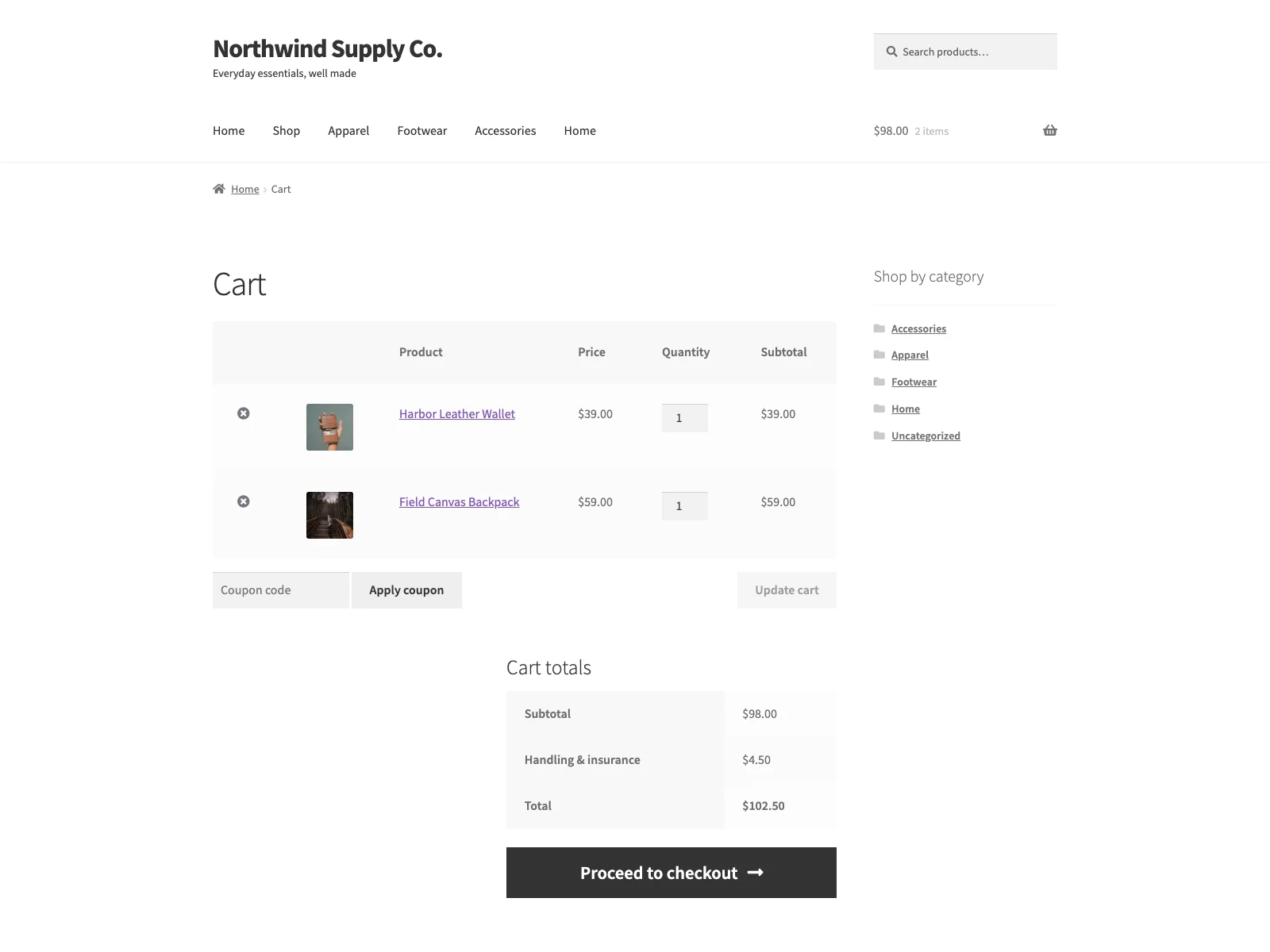 Surcharge adds the fee as a native cart line, clearly labelled and visible before the customer pays.
Each fee is either a fixed amount or a percentage of the cart contents subtotal, and there is no limit on how many fees you add. A percentage fee is taken from the cart contents subtotal including the tax on those items, before shipping and any other fees are added, with the percentage capped at the 0 to 100 range. That capping is a small but useful guard: it stops a typo turning a 5 percent surcharge into a 500 percent one. Every fee carries its own custom label that customers see on the cart, at checkout and on the order, so each charge is named in plain language rather than appearing as an anonymous addition to the total.
Tax is handled by WooCommerce, not by Surcharge. Mark a fee as taxable and WooCommerce applies your standard tax rules to it, the same rules that govern the rest of the order. Leave a fee unmarked and it is added tax-free. Surcharge deliberately does not invent its own tax logic; it passes the taxable flag to WooCommerce and lets the platform do what it already does well. That is the right division of labour, because tax rules are complicated, regional and constantly changing, and a fee plugin has no business second-guessing them.
Note: Surcharge does not invent its own tax logic. Mark a fee taxable and WooCommerce applies your standard tax rules to it, the same rules that govern the rest of the order; leave it unmarked and the fee is added tax-free.
Two switches give you control over what is live. You can keep a fee saved but inactive with the per-fee enable toggle, which is handy when you have a fee configured for a season or a campaign but do not want it running today. And a single master switch pauses every fee at once without deleting your configuration, then restores them all unchanged when you turn it back on. A row left without a label is simply skipped, so a half-finished fee never accidentally charges anyone.
Surcharge is self-contained. It connects to no external service, calls no remote APIs, and loads no third-party scripts, fonts or trackers. Its only stylesheet and script load on the WooCommerce, Surcharge admin screen and nowhere else. All data stays in your own database: the fee rows and the master switch live in a single surcharge_settings option, with a schema marker in surcharge_db_version, and both are removed when you delete the plugin. It creates no custom tables and sends no email. It requires WooCommerce and does nothing without it.
Setting it up
Getting a fee live takes a couple of minutes:
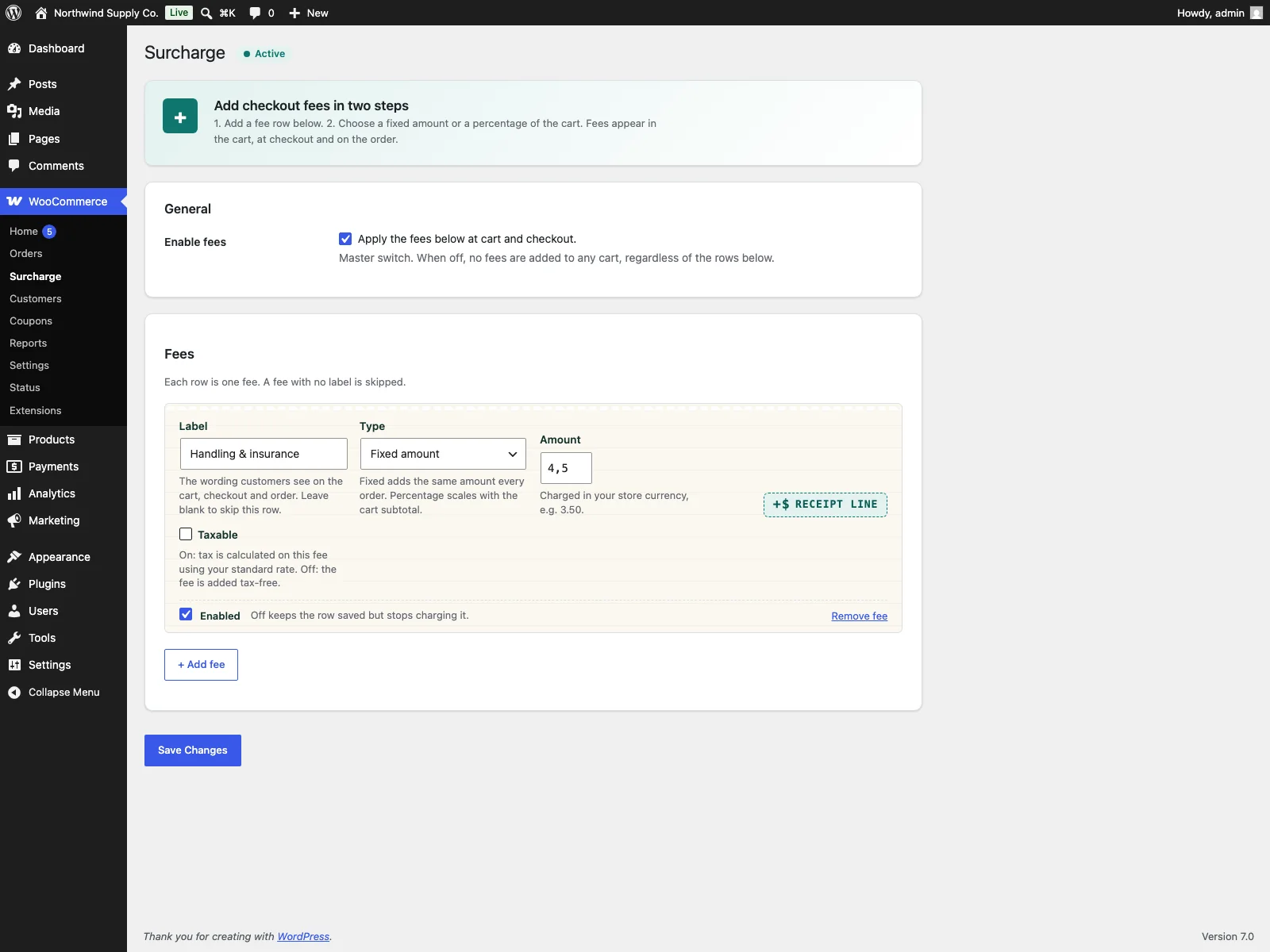 Each fee row carries a label, a fixed or percentage value, a taxable flag and an enable toggle.
- Install the plugin from Plugins, Add New, or upload it to
/wp-content/plugins/plogins-surcharge. WooCommerce must be installed and active. - Activate it.
- Go to WooCommerce, Surcharge and add your first fee. Give it a clear label, choose fixed amount or percentage, set the value, and decide whether it is taxable.
- Use the per-fee enable toggle to make the fee live, and leave the master switch on. Add more rows if you need more than one fee.
- Open the cart or checkout as a customer to confirm the fee appears in the totals with the label you set.
That last step matters. Because the fee touches the total the customer pays, it is worth viewing the checkout once as a shopper would, so you see the exact wording and amount they will see before you leave it running.
Tip: Because the fee touches the total the customer pays, open the cart or checkout once as a shopper to confirm the exact label and amount before you leave the fee live.
Practical tips
A plugin gives you the mechanism; how you use it is where the difference shows. A few pointers:
- Name the fee for what it is. “Handling fee” or “Service charge” is clearer than a vague “Surcharge” or, worse, an unexplained number. The label is the customer’s only explanation, so make it carry its weight.
- Pick fixed or percentage to match the cost. If the underlying cost is the same on every order, packing materials, say, use a fixed amount. If it scales with order value, a percentage keeps the fee proportionate. Mixing both, a small fixed handling fee plus a percentage service charge, is perfectly valid since you can add as many rows as you need.
- Set the taxable flag deliberately. Whether a fee is taxable is a tax question, not a preference. Check how your jurisdiction treats the specific charge and set the flag to match, then let WooCommerce apply the rate.
- Use the master switch for temporary changes. If you want to drop all surcharges for a holiday sale, flip the master switch rather than deleting rows. Your configuration is waiting, intact, when the promotion ends.
- Be transparent up front. A one-line note on the cart or a short policy line near checkout that explains why a fee exists turns a potential surprise into an expected part of the order. The clearer you are before checkout, the fewer questions you field after it.
What Surcharge does not do in free
The free plugin applies its configured fees to every cart while the master switch is on. It has no payment-method or shipping-country conditions, so it cannot, for example, add a fee only when a particular gateway is chosen or only for orders shipping outside your country. Conditional and advanced rules live in Surcharge Pro: fee-exempt user roles (for example wholesale accounts that should never see a surcharge), tiered fees by cart value, per-product and per-category rules, schedule windows for time-limited fees, and per-fee reporting with CSV export. Pro requires the free plugin and is delivered through Freemius. If your needs are “add one or more fixed or percentage fees that everyone pays,” the free plugin is the whole job. If you need fees that depend on who is buying, what is in the cart, or when, that is the line where Pro begins.
Surcharge versus default WooCommerce
WooCommerce has no built-in interface for adding cart fees at all. Here is the difference for checkout fees specifically:
| Capability | Default WooCommerce | Surcharge |
|---|---|---|
| Add a fixed fee to the cart | Not built in | Yes, fixed amount |
| Add a percentage fee | Not built in | Yes, percentage of cart subtotal |
| Multiple fees at once | Not built in | Yes, no limit, each enabled separately |
| Taxable fees | n/a | Yes, follows your WooCommerce tax rules |
| Custom label on cart and order | n/a | Yes |
| Pause all fees without losing config | n/a | Yes, master switch |
| Shown in totals and on the order | n/a | Yes, via the official fees API |
| Cart and checkout blocks plus HPOS | n/a | Yes, both supported |
| External account required | n/a | No, fully self-contained |
| Cost | Free (core has none) | Free; PRO adds role exemptions, tiered fees, per-product rules, schedules, reporting |
Free versus PRO
The free edition is a complete tool, not a teaser. Fixed and percentage fees, taxable fees, an unlimited number of fee rows, per-fee enable and the master switch are all included, and every fee is applied through the official cart fees API so it behaves like a native line. Surcharge Pro builds on that for stores whose fees need to be conditional rather than universal: fee-exempt user roles, tiered fees by cart value, per-product and per-category rules, schedule windows, and per-fee reporting with CSV export. The free plugin is the foundation Pro extends, so you start free and add Pro only when a fee needs to know something about the cart, the customer, or the calendar.
The short version
A WooCommerce checkout fee should be added as a native cart fee so it appears in totals, at checkout and on the saved order, not patched in by hand afterwards where the customer never agreed to it. Look for a tool that supports both fixed and percentage fees, follows your existing WooCommerce tax rules, labels each fee clearly, can pause cleanly, and brings no outside dependencies. Surcharge for WooCommerce does all of that for free, and Surcharge Pro adds conditional rules like role exemptions, tiered fees and schedules when a fee needs to be smarter than “everyone pays.”