WooCommerce tip and donation option at checkout
By Mariusz Szatkowski · Updated: 2026-09-11
If you run a WooCommerce store, you may want to let customers add a little extra at checkout: a tip for your team, a gratuity on a service, or a donation to a cause you support. Done well, this is a small, optional control that lifts your average order value without pressuring anyone into it. Done badly, it reads as a forced surcharge and chips away at trust. The difference is almost entirely in the details: whether it stays opt-in, whether the total updates honestly the moment a choice is made, and whether the tip lands on the order cleanly enough to show up in emails, reports and accounting. This guide explains what a checkout tip is, why stores offer one, what a good implementation needs, and how the Tipping plugin handles it as a native order fee.
What an optional checkout tip is
A checkout tip is an optional amount a customer chooses to add to their order at the moment they pay. It is voluntary by design, so the default is always to add nothing. The customer picks an amount, or declines, and that amount is added to the order total. Because it is attached to the order, it shows up in the totals the customer confirms before paying, and it stays with the order afterwards in emails and reports.
A tip and a donation are the same mechanism with different wording. You decide the label and where the money goes:
- A tip or gratuity rewards the people who fulfilled the order.
- A donation sends the extra amount to a charity or cause you support.
- A round-up or support us prompt invites a small contribution to the business itself.
None of these need a different technical approach. They are all the same thing: an optional extra amount, applied to one order, recorded against it. What changes is the label you show and the story you tell the customer about where the money goes.
Why a store would offer tipping
Offering an optional tip can raise revenue and strengthen customer goodwill at the same time, as long as it stays genuinely optional. Common reasons stores add a tip or donation option:
- Service and food businesses where tipping is a normal customer expectation, not a surprise.
- Small teams who want a direct, visible way for happy customers to say thank you.
- Cause-driven stores running a donation drive alongside normal sales.
- Any store testing whether a low-friction, opt-in prompt nudges average order value upward.
The key is restraint. A tip prompt works when it is easy to ignore. The moment it feels like a default surcharge the customer has to actively remove, it erodes trust faster than the extra revenue is worth. So the default selection should always be no tip, the wording should be plain, and the control should disappear entirely when there is nothing to offer.
Warning: A control that preselects an amount or hides the decline option earns a few extra tips in the short term and a reputation problem over time. Leave No tip as the default.
How a checkout tip works as an order fee
The cleanest way to add a tip in WooCommerce is as a native cart fee on the order. A fee is a first-class part of WooCommerce totals, so the tip behaves predictably everywhere it appears. Adding the tip as a fee means it automatically:
- Appears in the order totals the customer reviews before paying.
- Flows into customer and admin order emails.
- Shows up in WooCommerce sales reports.
- Stays attached to the order for refunds and accounting.
When a tip is applied as a non-taxable fee, no tax is calculated on the gratuity itself, which is the usual treatment for voluntary tips. Tax rules differ by country, so confirm the correct handling for your market before you go live.
There is one practical detail worth getting right: the total has to update the moment the customer picks an amount. If the customer selects a 10% tip but the figure they confirm at the gateway does not include it, you have a confusing checkout and a support problem. A good tip control recalculates through WooCommerce’s own checkout AJAX, so the figure the customer confirms always includes the tip they selected, and a percentage preset stays correct if the cart contents change before they pay.
Note: When a tip is applied as a non-taxable fee, no tax is calculated on the gratuity itself, which is the usual treatment for voluntary tips. Tax rules differ by country, so confirm the correct handling for your market before you go live.
Flat amounts versus percentage tips
You can offer tip presets as either fixed amounts or a percentage of the order, and each suits a different store.
- Flat amounts (for example 5, 10 or 20 in your currency) are predictable and quick to understand. They work well when order values are fairly consistent, so a fixed figure feels proportionate.
- Percentage presets (for example 5% or 10%) scale with the basket, so a large order contributes proportionally more. A percentage should be worked out from the current subtotal and recalculated if the cart changes, so it never drifts out of step with what the customer is actually buying.
Offering a small set of presets, rather than an open text box, lowers friction. The customer taps one choice and moves on. Always include a clear way to decline, so the control stays opt-in rather than becoming a question the customer feels obliged to answer.
Tip: Match flat presets to your typical order value so even the smallest option feels proportionate, and keep the set to three or four so the customer chooses quickly.
What a good tipping control needs
Whether you build it, buy it or install it, a tipping tool for WooCommerce should cover a handful of fundamentals. Use this as a checklist:
- Opt-in by default. No tip is preselected, so nobody is charged by accident.
- Live totals. The total updates the moment a preset is chosen, through WooCommerce’s own checkout recalculation, not a stale figure.
- A native fee. The tip is applied as a real WooCommerce fee so it lands in totals, emails and reports without special handling.
- Non-taxable handling. Voluntary tips are usually not taxed, so the fee should be applied without tax.
- Editable wording. You control the label and description, in your own language, so the prompt fits your store.
- Graceful absence. When tipping is off or no presets exist, the control renders nothing rather than showing an empty box.
- Accessibility. Preset buttons are keyboard operable with a visible focus state, and changes are announced to assistive technology.
- A durable record. The chosen amount is saved on the order so it can be audited and reported on later.
Notice what is not on that list: anything that pressures the customer. A tip control that preselects an amount, or hides the decline option, will earn a few extra tips in the short term and a reputation problem over time.
How Tipping handles it
Tipping for WooCommerce is a focused plugin that adds exactly this control to the checkout, with the whole configuration on a single screen. Customers pick a preset, either a flat figure or a percentage of their order, and the tip is added to the order totals as a native, non-taxable fee and saved on the order.
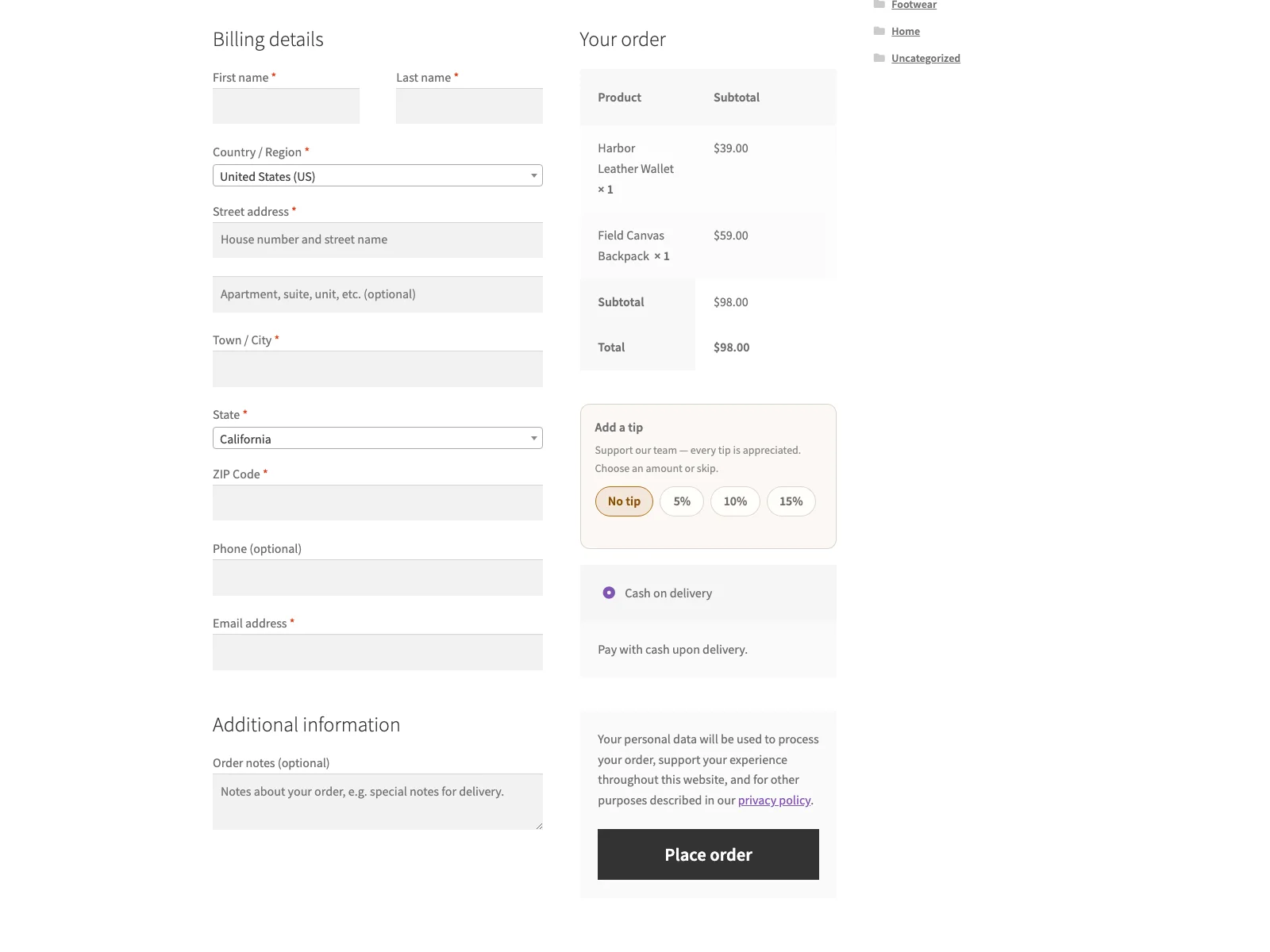 The tip preset control at checkout, where shoppers choose an amount and the total updates instantly.
The customer’s experience
The control renders on the checkout. The customer sees the label and description you wrote, a small set of preset buttons, and a No tip option that is selected by default. Choosing a preset recalculates the totals through WooCommerce’s own checkout AJAX, so the figure shown before payment always includes the tip. Percentage presets are worked out from the current subtotal, so they stay correct if the cart changes. The buttons are keyboard operable with a visible focus ring and an ARIA live status line, and the control respects reduced-motion preferences, so it works for every customer, not only mouse users.
If tipping is disabled or no presets are configured, the control renders nothing at all. There is no empty box and no leftover heading, so the checkout is never cluttered by a feature you are not currently using.
How the tip is stored
Each tip is recorded two ways. It is added as a standard WooCommerce cart fee, so it appears in the order totals, the customer and admin emails, and the sales reports with no special handling. The amount is also saved as the _tipping_amount order meta, which gives you a clean, queryable record for auditing and reporting. The plugin does not send any email of its own and does not connect to any external service: the tip choice is posted to WordPress’s own admin-ajax.php on the same origin, and WooCommerce does the recalculation, so the tip choice stays on your own site.
Setting it up
Getting the control live takes a few minutes:
- Upload the plugin to
/wp-content/plugins/plogins-tipping, or install it from Plugins > Add New. WooCommerce must be installed and active. - Activate it.
- Go to WooCommerce > Tipping, enable tipping, write your label and description, choose whether presets are fixed amounts or percentages, and set the preset values.
That is the whole setup. Everything lives on that one screen, so there is no scattered configuration to track down. Before you announce it, place a test order and confirm two things: that the total updates live when you pick a preset, and that the tip appears as a fee on the finished order and in the order email. The plugin declares HPOS compatibility and renders on the classic (shortcode) checkout, and it ships with a POT file so the wording can be translated. It removes its option on uninstall, so it leaves nothing behind if you remove it.
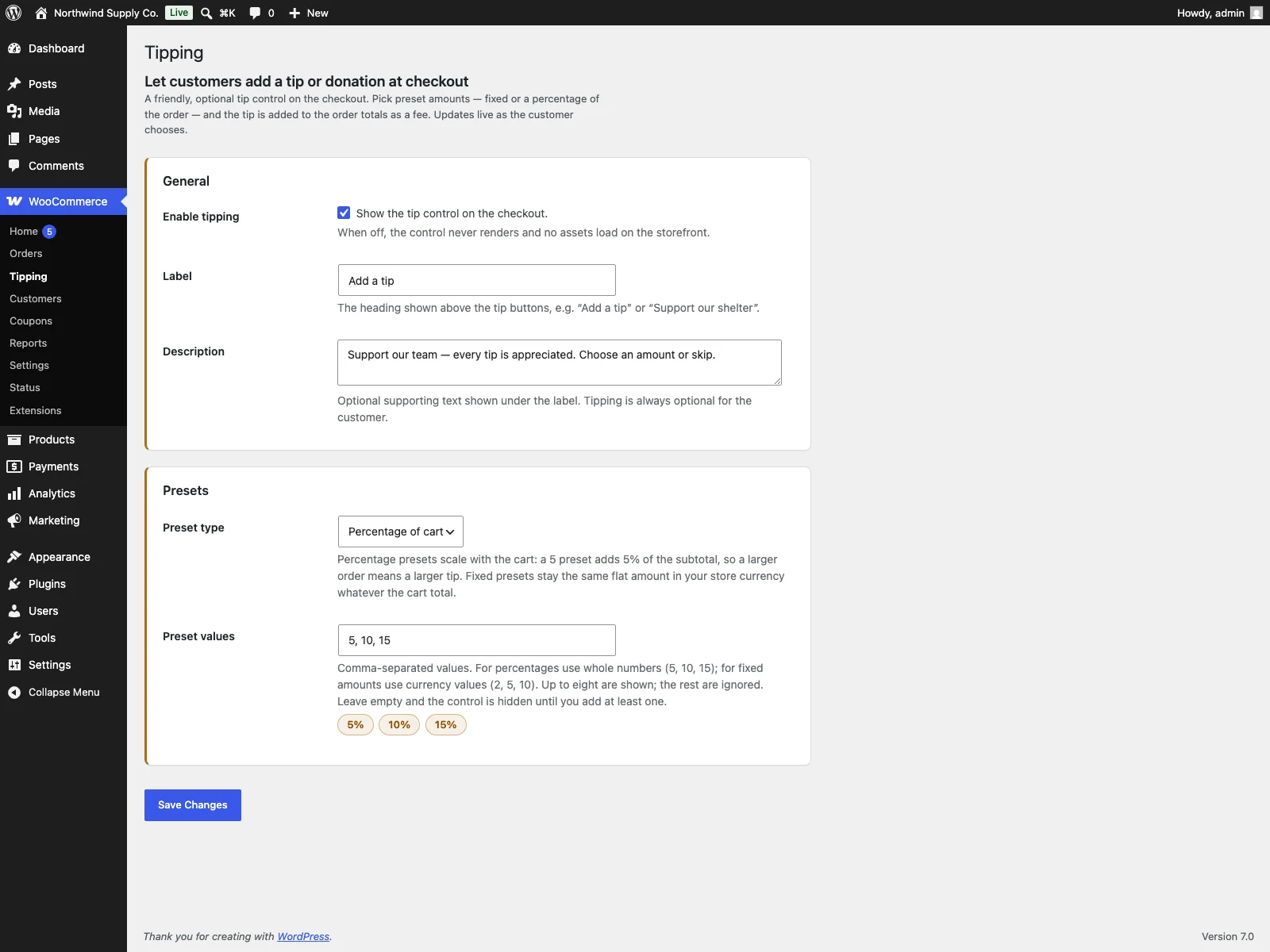 The wp-admin settings screen where you turn tipping on and configure your presets.
Practical tips for a tip that performs
A plugin gives you the mechanism; how you frame it decides whether customers use it.
- Be honest about the purpose. Tell the customer plainly what the amount is for. A tip for the team, a donation to a named cause, and a general support prompt each deserve different wording. Vague wording earns fewer tips, not more.
- Keep presets short. Three or four options are easier to act on than a long row. Match flat presets to your typical order value so the smallest option still feels proportionate.
- Never preselect an amount. Leave No tip as the default. The goodwill from an opt-in prompt is worth more than the extra revenue from a default people resent.
- Confirm tax treatment. Voluntary tips are commonly non-taxable, which is how Tipping applies them, but rules vary by jurisdiction. Check before you launch.
- Watch the data. Because the amount is stored on the order, you can see over time whether flat or percentage presets perform better for your store, and adjust.
Tipping versus default WooCommerce
WooCommerce has no built-in tip or donation control at checkout. You can add a manual fee from the admin order screen after the fact, but there is no customer-facing, opt-in prompt. Here is the difference for tipping specifically:
| Capability | Default WooCommerce | Tipping |
|---|---|---|
| Customer-facing tip control | None built in | Preset control on checkout |
| Preset amounts | n/a | Flat figures or percentage of cart |
| Live total update on selection | n/a | Yes, via WooCommerce checkout AJAX |
| Applied as a native order fee | Manual fee only, set by admin | Yes, automatically on selection |
| Non-taxable handling | Manual | Yes, applied as a non-taxable fee |
| Opt-in by default | n/a | Yes, No tip is preselected |
| Editable label and description | n/a | Yes |
| Saved on the order for auditing | n/a | Yes, as _tipping_amount order meta |
| Accessibility (keyboard, focus, ARIA) | n/a | Yes, with reduced-motion handling |
| Cost | Free (no tip control) | Free; Pro adds round-up, goals, recipients, reports |
Free versus Pro
The free Tipping plugin is a complete control, not a teaser: preset tips, live totals, the native non-taxable fee, opt-in defaults, editable wording, accessibility and the saved order meta are all included. Tipping Pro is a paid add-on that requires the free plugin and builds on it for stores that want to go further. It adds round-up tipping, so a customer can round their order up to the next whole amount with the difference taken as the tip; a tip goal progress bar on checkout that shows a fundraising target and how close you are to it; recipient splitting, so shoppers choose which of up to ten causes their tip supports; tip reports that aggregate tipped orders by date, preset and recipient with CSV export; and post-purchase tipping, which invites a tip on the order thank-you page through a separate order and your existing payment gateway. Tipping Pro is distributed through Freemius rather than the WordPress.org directory.
The short version
A checkout tip is an optional, opt-in amount the customer adds to their order, and a tip and a donation are the same mechanism with different wording. The cleanest implementation applies it as a native, non-taxable WooCommerce fee that updates the total live and lands in emails and reports automatically, while keeping No tip as the default so the control never feels like a forced surcharge. WooCommerce has no built-in control for this. The free Tipping plugin adds one on a single settings screen, applies the tip as a live order fee, saves it on the order for auditing, and renders nothing when there is nothing to offer; Tipping Pro adds round-up tipping, fundraising goals, recipient splitting, reports and post-purchase tipping when you are ready to do more.