WooCommerce local pickup scheduling: choose pickup slots
By Mariusz Szatkowski · Updated: 2026-10-28
Click-and-collect has quietly become a default expectation rather than a perk. Shoppers like skipping shipping fees, getting an order the same day, and avoiding a missed-delivery dance with a courier. For the store, pickup turns a fulfilment cost into a small extra footfall opportunity. The catch is timing. A pickup order with no agreed collection time is barely better than a vague promise: staff do not know when to have the goods ready, the counter gets a queue at the worst moment, and a customer turns up while the order is still sitting in the stockroom. This guide explains what local pickup scheduling is, why a real slot beats an open-ended “collect when ready,” what a good scheduling flow needs, and how the free Prenejo plugin adds that flow to WooCommerce.
What local pickup scheduling actually is
It helps to separate two things that sound similar. Local pickup is the fulfilment method: the order is collected in person rather than shipped. WooCommerce already ships a Local Pickup shipping method that handles the money side, zero shipping cost, and flags the order as a collection. Pickup scheduling is the layer on top: the customer also chooses where they will collect (which of your locations) and when (a specific date and time slot), and that commitment is recorded on the order.
The distinction matters because the standard method stops at “this is a pickup order.” It does not ask which branch, it does not offer a time, and it has no idea how many people have already booked the same Saturday morning. Scheduling fills that gap. It turns a loose intention into a concrete appointment that both sides can plan around: the shopper knows their order will be waiting at 10:30 on Friday, and you know how many orders to prepare for each window.
A good scheduling flow does three jobs at once. It captures a real collection commitment from the customer, it protects your counter from being swamped by capping how many orders land in any one window, and it makes that commitment visible to everyone who needs it, the customer, the staff packing the order, and the person at the collection point.
Why a real slot beats “collect when ready”
The open-ended approach, where a customer pays for pickup and you email them when it is ready, feels simpler but pushes all the coordination cost onto you. Three predictable problems follow.
First, demand bunches. Without slots, everyone who wants to collect on Saturday arrives on Saturday, often in the same two hours. A slot system spreads that load across the day and across your opening windows, so the counter handles a steady trickle instead of a crush.
First-come arrivals also mean no capacity ceiling. If forty orders are flagged for pickup and your counter realistically handles ten an hour, the eleventh customer waits, and waiting customers at a collection point are unhappy customers. Capping each slot keeps the promise you are making honest: a slot is only offered while you can actually service it.
Finally, the order is not ready when they arrive. The single most common pickup failure is a shopper turning up before staff have picked and packed the order, because nobody agreed a time. A booked slot is a deadline your team can work to. It converts “ready at some point” into “ready by this time,” which is the difference between a smooth handover and an awkward wait at the counter.
Warning: The most common pickup failure is a shopper arriving before staff have picked and packed the order, because no time was agreed. A booked slot is a deadline your team can work to.
A scheduled slot also quietly improves the customer’s experience. They are choosing a time that suits them rather than waiting on a “your order is ready” email that might land while they are at work. The commitment runs both ways, and that mutual certainty is the whole point.
What a good pickup scheduling flow needs
If you are weighing up how to add click-and-collect scheduling to WooCommerce, whether you build it, buy it or install it, use this as a checklist:
- A location chooser. If you collect from more than one branch, the customer picks which one. Each location should be something you can enable or disable as branches open and close.
- A date and time-slot picker. Slots generated from your real opening hours, not a free-text “preferred time” box that staff have to interpret.
- Per-slot capacity. A cap on how many orders fit into each location, date and slot, so a popular window cannot be over-booked.
- Lead time and a booking horizon. A minimum notice so customers cannot book a slot starting in five minutes, and a ceiling so they cannot book six months out.
- Conditional fields. The pickup fields should only appear when pickup is actually chosen, and never block a normal home-delivery checkout.
- Server-side validation. The choice must be re-checked when the order is placed, not just in the browser, so a stale or full slot cannot slip through.
- Visibility everywhere. The chosen location and slot shown to the customer (confirmation and account) and to staff (admin order screen and emails), so nobody has to ask.
Notice what is deliberately simple here: no external booking service, no separate calendar app to reconcile. The pickup commitment belongs on the order itself, where your team already works.
How Prenejo handles it
Prenejo for WooCommerce is a free plugin that adds exactly this scheduling layer. It builds on WooCommerce’s own Local Pickup method rather than replacing it, so the money side stays standard and the scheduling sits cleanly on top.
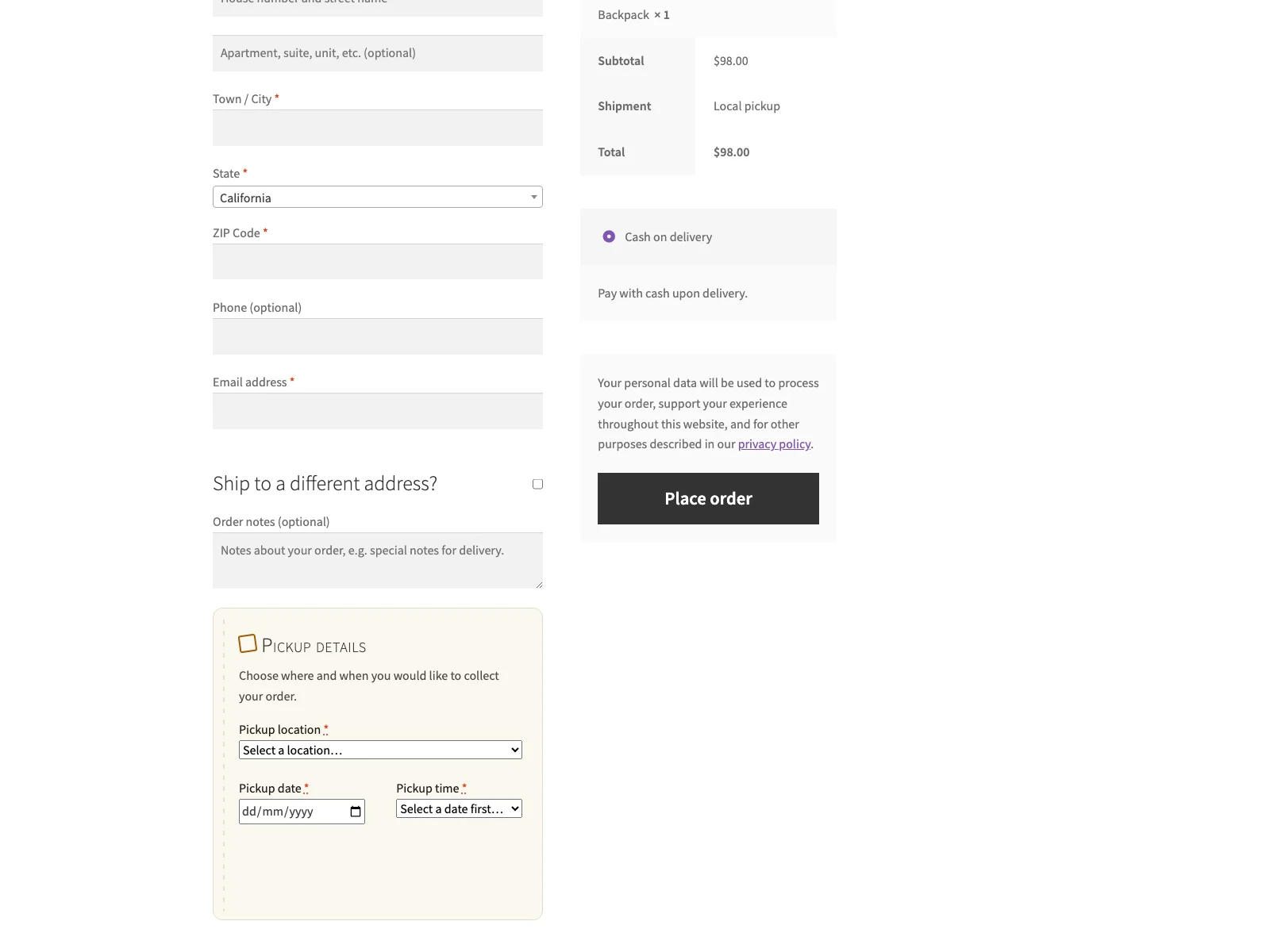 The pickup location chooser and time-slot picker appear at checkout once the shopper selects Local Pickup.
The customer journey
When a shopper selects WooCommerce Local Pickup as their shipping method, the pickup fields appear at checkout: a location chooser drawn from the list you defined, and a date plus time-slot picker. The slot list is live. It posts to your own site’s WordPress AJAX endpoint and the available times are calculated on your server from the opening hours you set. Times that are already full, or that fall inside the minimum lead-time window, are simply not offered, so the customer can only pick a slot you can actually honour. Dates and times use your store timezone and the WordPress date format, so they read the way the rest of your site does.
For every shipping method other than Local Pickup, the fields stay hidden and are never required. A home-delivery customer never sees them, so the pickup feature adds nothing to a normal checkout.
The capacity guard
Each slot has a capacity. Once the number of orders booked into a given location, date and slot reaches that number, the slot drops off the list and cannot be booked twice over. The selection is checked again on the server before the order is created, not only filtered in the browser, so two shoppers racing for the last spot in a slot cannot both slip through.
Where the choice shows up
The pickup location and slot are saved to the order and surfaced where people need them: on the admin order screen, in the order emails, and on the customer’s order and thank-you pages. Staff packing the order see the slot without opening anything extra, and the customer has their collection time in writing in their inbox.
How slots are generated
You define weekly opening windows per the hours you actually trade, and Prenejo turns them into bookable slots using your chosen slot length. A 09:00 to 12:00 window with a 30-minute slot length, for example, offers 09:00, 09:30, 10:00 and so on. Two further settings shape the list: a minimum lead time, so customers give you enough notice, and a booking horizon, so they cannot book unreasonably far ahead.
Tip: Set a minimum lead time at least as long as it takes to pick and pack a typical order, so a customer cannot book a slot you have no chance of preparing for.
Setting it up
Getting scheduling live takes a few minutes:
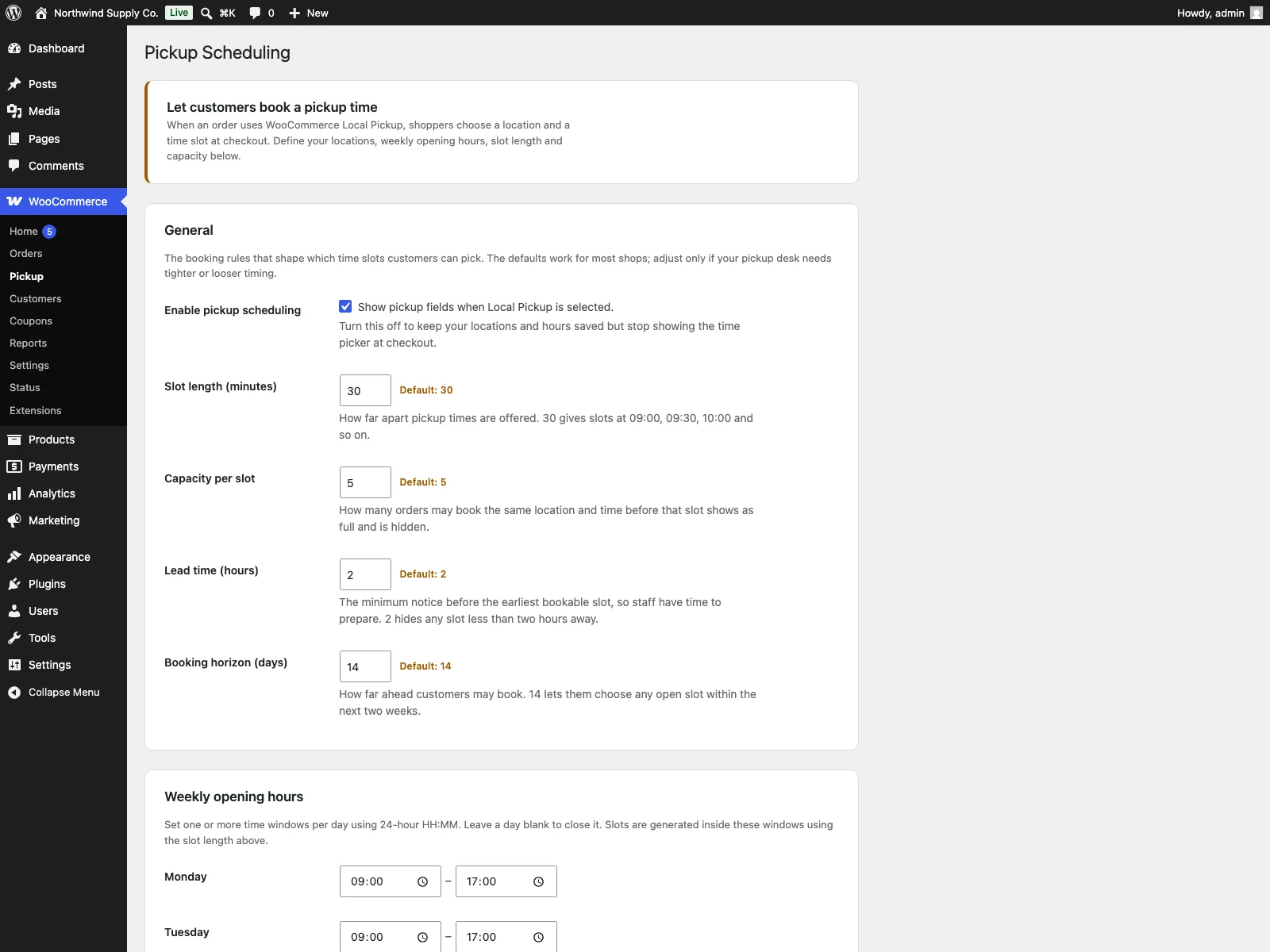 The Prenejo settings screen in wp-admin, where you add locations, opening hours, slot length and capacity.
- Install Prenejo from Plugins > Add New, or upload it to
/wp-content/plugins/prenejo. WooCommerce must be installed and active. - Activate it.
- Enable WooCommerce Local Pickup under WooCommerce > Settings > Shipping, since Prenejo builds on that method.
- Go to WooCommerce > Pickup, add your locations and weekly opening hours, and set the slot length, capacity, lead time and booking horizon.
That is the whole setup. From then on, any customer who chooses Local Pickup at checkout is offered a location and a real time slot, and each booking counts against that slot’s capacity.
Because Prenejo stores everything as order meta and settings in a single option, there is no custom database table to maintain. It declares HPOS compatibility and works alongside the Cart and Checkout blocks: with the block-based checkout the plugin declares compatibility and saved pickup details still show on the order, emails and account pages, while the in-checkout field UI is the classic one. It ships with a POT file for translation and removes its settings on uninstall. It also makes no calls to outside services: the live slot lookup talks only to your own server.
Practical tips for running pickup well
A plugin gives you the mechanism; how you configure it decides whether collection runs smoothly.
- Size slots to your real throughput. Set slot length and capacity around how fast your team can actually hand orders over at the counter. A 15-minute slot with a capacity of two is very different from an hour-long slot with a capacity of ten; pick numbers your busiest staff member can keep up with.
- Use lead time to protect prep. If picking and packing a typical order takes an hour, set a minimum lead time of at least that. It stops a customer booking a slot you have no chance of preparing for.
- Keep the booking horizon sensible. A horizon of one to two weeks usually balances flexibility against stale bookings. Too far out and you collect reservations people forget about.
- Mirror your slots to your opening hours. Define opening windows that match when staff are genuinely available to hand over orders, not just when the shop door is open. A slot offered during a one-person lunch shift will cause friction.
- Tell customers it exists. A line on the product or cart page noting “choose a collection time at checkout” turns the feature into an expected step rather than a surprise.
Prenejo versus default WooCommerce
WooCommerce can mark an order for collection, but it stops there. Here is the difference for scheduling specifically:
| Capability | Default WooCommerce | Prenejo |
|---|---|---|
| Local pickup shipping method | Yes | Uses WooCommerce’s own method |
| Choose a pickup location | None | Admin-defined list, each enable/disable |
| Date and time-slot picker | None | Generated from your weekly opening hours |
| Per-slot capacity | None | Cap per location, date and slot |
| Lead time and booking horizon | None | Both configurable |
| Full or too-soon slots hidden | n/a | Yes, dropped from the list |
| Server-side re-check on order | n/a | Yes, before the order is created |
| Shown on order, emails, account | Method name only | Location and slot on all three |
| Custom database tables | n/a | None; stored as order meta |
| Cost | Free (method only) | Free; Pro adds overrides, blackouts, pricing, export |
Free versus Pro
The free Prenejo plugin is a complete scheduling flow, not a teaser: locations, opening-hours-driven slots, per-slot capacity, lead time and booking horizon, server-side validation, and display on the order, emails and account pages are all included with a single store-wide capacity per slot.
Prenejo Pro is an add-on that builds on the free plugin (it requires Prenejo to be installed and active) for stores that need exceptions and refinements. It adds per-location capacity overrides, so each branch can have its own slot limit instead of the store-wide default; slot blackouts and closed dates, to block holidays, one-off closures or specific time windows; per-slot pricing, to charge a flat fee or offer a discount by location, weekday and time band; and calendar export, to download booked pickups as an iCalendar (.ics) file per location. It is distributed through Freemius rather than the WordPress.org directory. Start free, and add Pro only when your operations need per-branch rules, holiday closures, slot pricing or a calendar feed.
The short version
WooCommerce can flag an order for local pickup, but it offers no location chooser, no time slots and no capacity, so collection volume bunches up and orders are not ready when customers arrive. A good scheduling flow needs a location chooser, opening-hours-driven slots, per-slot capacity, lead time and a booking horizon, conditional fields that never touch a delivery checkout, and server-side validation. The free Prenejo for WooCommerce plugin covers all of that, storing the choice as order meta and showing it on the order, emails and account pages, with no custom tables and no external services; Prenejo Pro adds per-location capacity, blackout dates, slot pricing and calendar export when your operation outgrows a single store-wide schedule.