WooCommerce sale countdown timer: urgency for real sales
By Mariusz Szatkowski · Updated: 2026-09-11
A sale countdown timer is one of the simplest ways to turn a quiet discount into a reason to buy now. A price that is “on sale” tells a shopper nothing about whether they can think it over for a week. A clock ticking toward the end of that sale tells them exactly how long they have, and that small change in framing is often enough to move a decision from “later” to “now”. This guide explains what a countdown timer is, why it lifts conversions on a WooCommerce store, where to place it, what separates a trustworthy timer from a manipulative one, and how to set one up that counts down to your real sale end date without slowing the page or breaking trust.
What a sale countdown timer is
A sale countdown timer is a live clock, shown on a product page, that counts down to the exact moment a sale or promotion ends.
Instead of a static “discount ends soon” note, the shopper sees a shrinking set of numbers: days, hours, minutes, and sometimes seconds. That visible movement does the persuading. It tells the customer the offer is genuinely time-limited and that waiting has a cost, where a wall of static text simply does not.
The important thing to understand is what the timer does not do. It does not change the sale, the price, or the discount logic. WooCommerce still controls when the sale price applies and when it reverts. The timer only surfaces a deadline you already have, the end date of your discount, and presents it in a form that is hard to ignore. A good countdown is a display layer over an existing offer, not a separate promotion you have to manage.
Note: The timer does not change the sale, the price, or the discount logic. WooCommerce still controls when the sale price applies, so there is no separate promotion to keep in sync.
Why countdown timers help a store
A visible deadline works because it removes the easiest decision a shopper can make: doing nothing. Most visitors who leave without buying do not actively reject the product. They postpone, and postponing usually means forgetting.
- It reduces hesitation. A clear end time gives an undecided visitor a reason to act now rather than “maybe later”, which in practice often means never.
- It frames the discount as scarce. Scarcity in time, not just in stock, makes an offer feel more valuable. A 20 percent discount that runs forever reads as the new normal price; the same discount with two hours left reads as something to grab.
- It sets honest expectations. Shoppers can see precisely when the price goes back up, so there are no unpleasant surprises if they return later and the discount is gone.
- It builds campaign momentum. Seasonal events such as Black Friday, a flash sale, or an end-of-season clearance benefit from a shared, visible countdown that creates a sense of a moment passing.
The single most important rule is honesty. A timer tied to a real sale end builds trust and urgency at the same time. A fake countdown, or one that quietly resets to a fresh 24 hours every time the page loads, erodes trust the moment a shopper notices, and it can fall foul of consumer protection rules on misleading commercial practices in many markets. The whole value of urgency is that the shopper believes it. A timer that lies is worse than no timer at all, because it teaches your repeat customers to ignore every deadline you ever set.
Warning: A fake countdown, or one that quietly resets to a fresh 24 hours every time the page loads, erodes trust the moment a shopper notices and can fall foul of consumer protection rules on misleading commercial practices. A timer that lies is worse than no timer at all.
Where to place the timer
A countdown timer earns its keep when it sits next to the buying decision. A clock the shopper has to scroll to find, or click a tab to reveal, cannot influence a choice that is being made up at the price.
The strongest placements on a WooCommerce product page are:
- Just below the price, in the product summary, so the deadline reads as part of the offer itself rather than a separate widget.
- Immediately before or after the add-to-cart form, right at the point where the shopper commits.
- In the product meta area, lower down, when you want the timer present but deliberately less prominent.
Avoid burying the timer in the footer or in a hidden tab. If it is not visible while the price and the buy button are on screen, it is decoration, not persuasion.
Tip: Keep the timer next to the price or the add-to-cart button, where the buying decision is made. A clock the shopper has to scroll to find or click a tab to reveal cannot influence that choice.
What a good countdown solution needs
Before looking at any specific plugin, it is worth knowing what separates a countdown you can trust from one that causes problems. Use this as a checklist whether you build, buy, or install:
- A real, single source of truth for the deadline. The end moment should come from an offer you actually run, not an arbitrary number typed into a widget.
- A server-resolved end time. The deadline should be fixed on the server and sent to the browser as a timestamp, so a visitor with a wrong device clock cannot change when the sale appears to end.
- No layout shift. The markup should reserve space for the digits before JavaScript fills them in, so the page does not jump as the numbers appear. Layout shift is both an annoyance and a Core Web Vitals penalty.
- Light weight. A small script with no jQuery and no third-party requests adds almost nothing to load time. A timer that drags in a heavy library to show four numbers is a poor trade.
- A defined end state. When the clock reaches zero it should disappear and be replaced by a short message, not freeze or count into negative numbers.
- Accessibility. The clock should be marked up so assistive technology can announce the remaining time, and its labels should be translatable.
- Theme control. Styling through CSS custom properties, or a template you can copy into your theme, keeps the timer on-brand rather than looking bolted on.
Notice what is not on that list: a separate countdown schedule. The cleanest tools reuse the sale deadline you have already set in WooCommerce, so there is nothing extra to keep in sync.
How Ticker adds the countdown
For WooCommerce specifically, Ticker - Sales Countdown Timer for WooCommerce is built around the sale you already run, which means there is nothing extra to schedule. It reads the end time from each product’s native WooCommerce sale dates, or from a single campaign date you set for the whole store, and counts down to that moment.
 Ticker counts down to the real sale end date, placed right beside the price where the decision happens.
The deadline is worked out on the server, so there is one source of truth, and a visitor’s wrong system clock cannot change when the sale actually ends. The end moment is sent to the browser as a fixed UTC timestamp; the browser only formats the remaining time, using a small vanilla-JavaScript script with no jQuery and no other dependencies.
Note: The end moment is resolved on the server and sent to the browser as a fixed UTC timestamp, so a visitor with a wrong device clock cannot change when the sale appears to end.
A few capabilities are worth calling out because they map directly to the checklist above:
- It reads each product’s “Sale price dates” out of the box. Set a sale end date on a product and the countdown appears on that product, counting down to the same moment the discount expires.
- Or it uses one store-wide campaign date. If you would rather count everything down to a single moment, set one campaign end date. You can mix the two: the per-product sale date wins where it exists, and the campaign date fills in for products that do not have one.
- You choose where the timer goes. The product summary below the price, before or after the add-to-cart form, or the product meta area.
- Three time formats. Days/hours/minutes/seconds, hours/minutes/seconds, or a compact hours/minutes that drops the ticking seconds on longer campaigns where a flickering seconds counter would be noise.
- An optional heading and a custom end message. Add a line above the clock, and set your own wording for the short “sale ended” message that replaces it once the sale is over.
- No layout shift. The markup is rendered server-side with the digit boxes already sized, so the browser drops the numbers into reserved space instead of reflowing the page. That keeps Cumulative Layout Shift at zero for the timer.
- Accessible and translatable. The clock is marked up with
role="timer"and a polite live region so screen readers can announce it, and the label text is translatable. - Theme control. Restyle it with CSS custom properties, or copy the template into your theme at
yourtheme/ticker/single-product/countdown.phpto change the markup directly.
It creates no custom database tables. Its settings live in wp_options and are removed when you delete the plugin, and it declares HPOS and Cart/Checkout Blocks compatibility, so it sits cleanly on a modern WooCommerce install.
Setting it up
Getting the countdown live takes a few minutes:
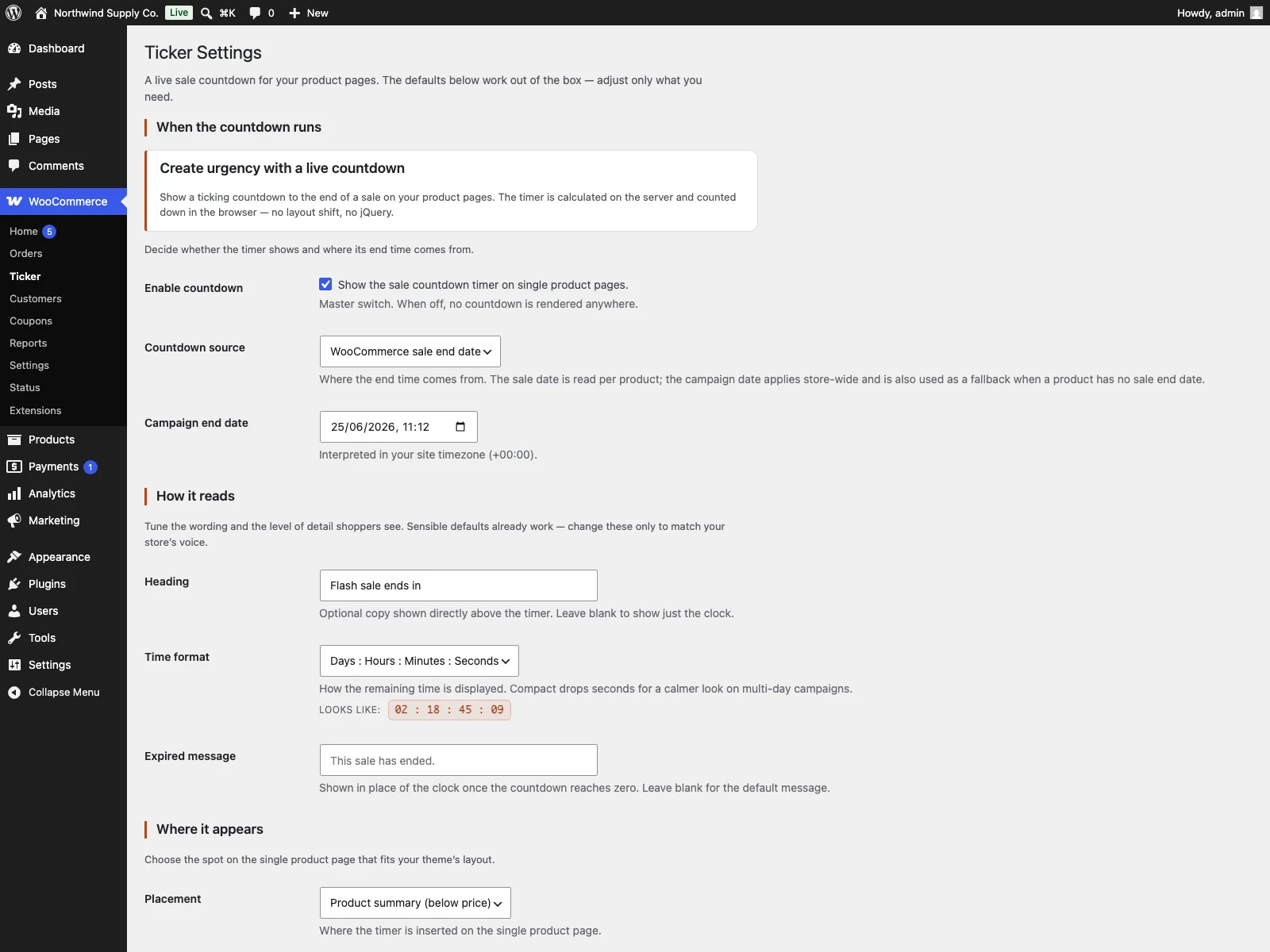 Enable the countdown, then pick its placement, time format and end message.
- Install and activate WooCommerce 8.0 or later, then upload the
tickerfolder to/wp-content/plugins/or install it from the Plugins screen and activate it. - Go to WooCommerce > Ticker and tick “Enable countdown”.
- Choose where the timer appears, pick a time format, and optionally add a heading and your own sale-ended wording.
- Set a sale end date on a product under Product data > General > Sale price dates, or set a campaign end date in Ticker’s settings.
The countdown then appears on the product page, counting down to that end time. If WooCommerce is not active, Ticker stays quiet and shows an admin notice rather than breaking the page.
Practical tips for getting it right
A timer is a mechanism; using it well is a matter of judgement.
- Keep the deadline real. Tie the timer to a genuine sale end and let it expire honestly. The trust you build with one real deadline is worth more than the short-term lift from a fake one.
- Match the format to the campaign length. Seconds add tension on a flash sale that ends today. On a two-week seasonal campaign, a ticking seconds counter is distracting noise, so the compact format that shows only hours and minutes reads better.
- Do not put a timer on everything. If every product on the store is “ending soon”, urgency stops meaning anything. Reserve countdowns for products that are genuinely on a deadline.
- Place it where the decision happens. Below the price or beside the add-to-cart button beats a timer further down the page that the shopper may never scroll to.
- Plan the end state before the sale starts. Decide what the “sale ended” line should say, so a shopper who arrives a minute late sees a clean message rather than a broken or frozen clock.
- State the offer in writing too. A short “sale ends” note in the product copy reinforces the timer for shoppers who skim past the clock or browse with assistive technology.
Countdown timers versus default WooCommerce
WooCommerce has the deadline you need, the sale end date, but it does nothing visible with it. Here is the difference for a sale countdown specifically:
| Capability | Default WooCommerce | Ticker |
|---|---|---|
| Visible countdown on the product page | None | Live clock counting to the sale end |
| Reads the product’s sale end date | Stored, not shown | Yes, out of the box |
| Store-wide campaign date | None | Yes, with per-product override |
| Server-fixed end time | n/a | Yes, sent as a UTC timestamp |
| Placement control | n/a | Summary, around add-to-cart, or meta area |
| Time formats | n/a | Three (DHMS, HMS, compact HM) |
| Custom end message | None | Yes, your own wording |
| Layout shift | n/a | Zero (digit boxes pre-sized) |
| Accessibility | n/a | role="timer" and a live region |
| Dependencies | n/a | Vanilla JS, no jQuery, no third-party calls |
| Cost | Free (no countdown) | Free |
The short version
A “sale” label tells a shopper nothing about how long they have, so they postpone, and postponing usually means forgetting. A sale countdown timer turns that abstract discount into a visible, shrinking deadline placed where the buying decision happens, which gives an undecided visitor a reason to act now. The rules that matter are simple: tie the timer to a real deadline, fix the end time on the server so a wrong clock cannot move it, reserve space for the digits so the page does not jump, keep the script light, and plan a clean end state. Ticker does all of that on top of the WooCommerce sale you already run, reading each product’s sale end date or counting the whole store down to one campaign date, with configurable placement, three formats, accessible markup, and zero layout shift, so a genuine deadline becomes visible urgency without inventing one you do not actually have.