WooCommerce announcement bar: sales, shipping and notices
By Mariusz Szatkowski · Updated: 2026-09-11
A store announcement bar is one of the simplest ways to tell every visitor something important the moment they land. Whether you are running a weekend sale, reminding shoppers of a Christmas shipping cut-off, or flagging a free-shipping threshold, a single bar at the top of the page reaches everyone without an email or a popup. The trouble is that WooCommerce has no announcement bar of its own, so the message ends up living somewhere it gets missed: buried on the home page, hidden in a product description, or sent in an email that most shoppers never open. This guide explains what an announcement bar is, when to use one, how to write a bar that gets read, and how to add a clean, dismissible, accessible bar to WooCommerce with the free Notice plugin.
What a store announcement bar is
A store announcement bar is a thin, full-width strip pinned to the top of every page that carries one short, store-wide message.
It sits above your header so it is the first thing a visitor reads, and it usually pairs a single line of text with an optional call-to-action button. The point is reach: every page on your store shows the same message, so you do not depend on shoppers opening an email or noticing a banner buried on the home page. The bar is store-wide by design, which is exactly what makes it useful for the handful of things every visitor genuinely needs to know.
Unlike a popup, a good announcement bar does not block the page or interrupt browsing. It stays out of the way, communicates one thing, and lets the visitor read it and move on. That restraint is the whole point. A popup demands a decision; a bar simply informs.
When to use an announcement bar
An announcement bar works best for a single, time-sensitive, store-wide message. The clearest uses are:
- Sales and promotions. Announce a discount, a coupon code, or a flash sale, with a link to the sale page.
- Free-shipping thresholds. Tell shoppers how much they need to spend to unlock free delivery.
- Shipping cut-off dates. Warn customers of the last order date for delivery before a holiday or weekend.
- Service notices. Flag stock delays, a temporary closure, or extended dispatch times during busy periods.
- Important policy changes. Point to updated terms, a new returns window, or seasonal opening hours.
The rule of thumb is one idea per bar. If you try to communicate three things at once, shoppers absorb none of them. A bar is a headline, not a notice board.
Tip: Decide what the bar is for this week and resist adding a second message. If you have two things to say, lead with the more urgent one and find another place for the other.
How to write a bar that gets read
A bar that gets read is short, specific and ends with a single action.
- Lead with the benefit or deadline. “Free shipping over PLN 200” or “Order by Friday for delivery before the holidays” beats a vague “Special offer”.
- Keep it to one line. The bar is narrow, especially on mobile, so trim every word that is not pulling its weight.
- Add one call to action. A single button or link to the sale, the category, or the policy page is enough. Two competing links split attention.
- Use plain numbers and dates. Concrete figures, for example “save 20%” or “by 19 December”, are more persuasive and more honest than slogans.
- Refresh it when the offer changes. A stale “summer sale” bar in autumn erodes trust faster than no bar at all.
Warning: A stale bar erodes trust faster than no bar at all. An empty or disabled bar is better than one still advertising an offer that has ended.
What a good announcement bar needs
Setting up an announcement bar in WooCommerce comes down to where the bar is injected, how it looks, and how it behaves. A clean solution should cover a few fundamentals, whether you build it by hand or install a plugin:
- Site-wide rendering. The bar should appear on every front-end page through the theme’s
wp_body_openhook, so it shows above the header without editing template files. Most modern themes support this hook. - A safe way to write the message. You want to be able to add a link or a little emphasis without opening a hole that lets arbitrary HTML onto every page of your store.
- An optional call to action. A labelled button with its own URL, and the choice to open it in a new tab, so the bar can drive clicks and not just inform.
- Brand-matched colours. Background, text and accent colours you control, so the bar looks part of the store rather than a bolt-on.
- A dismiss control. Let shoppers close the bar once they have seen it, and remember that choice so it does not nag on every visit.
- Assets loaded only when active. A well-built bar enqueues its CSS, and any dismissal script, only when the bar is actually switched on, so a disabled bar costs nothing.
- Accessibility built in. The bar should be a labelled region with a keyboard-operable close button, visible focus styles, and respect for reduced-motion preferences.
You can hand-code most of this with a snippet, but a snippet gives you no settings screen, no live preview, no safe-HTML handling and no dismissal logic. A dedicated plugin gives you all of that without touching theme files, and keeps the bar working when you switch themes.
Accessibility and performance matter
An announcement bar touches every page, so its quality affects your whole store.
On performance, the lightest bars render as plain server-side HTML and avoid front-end JavaScript frameworks entirely. Loading the small stylesheet only when the bar is enabled means a disabled bar adds nothing to your pages, and there is no layout shift beyond the bar’s own height. This is the difference between a bar that is invisible in your Core Web Vitals and one that drags every page down for the sake of a single line of text.
Note: When the bar is switched off, nothing renders on the storefront and no CSS or JavaScript is loaded, so a disabled bar adds nothing to your pages.
On accessibility, the bar should be exposed as a labelled ARIA region so screen readers announce it, the close button should be operable by keyboard, focus styles should be visible, and any animation should respect a visitor’s reduced-motion setting. A bar that fails these basics annoys some shoppers and excludes others. Because the bar is the first thing on the page, an inaccessible bar is the first barrier a keyboard or screen-reader user hits.
Warning: Because the bar is the first thing on the page, an inaccessible bar is the first barrier a keyboard or screen-reader user hits.
How Notice handles it
Notice - Announcement Bar for WooCommerce is a free plugin that adds exactly one store-wide bar to the top of your shop, with the controls described above and nothing you do not need.
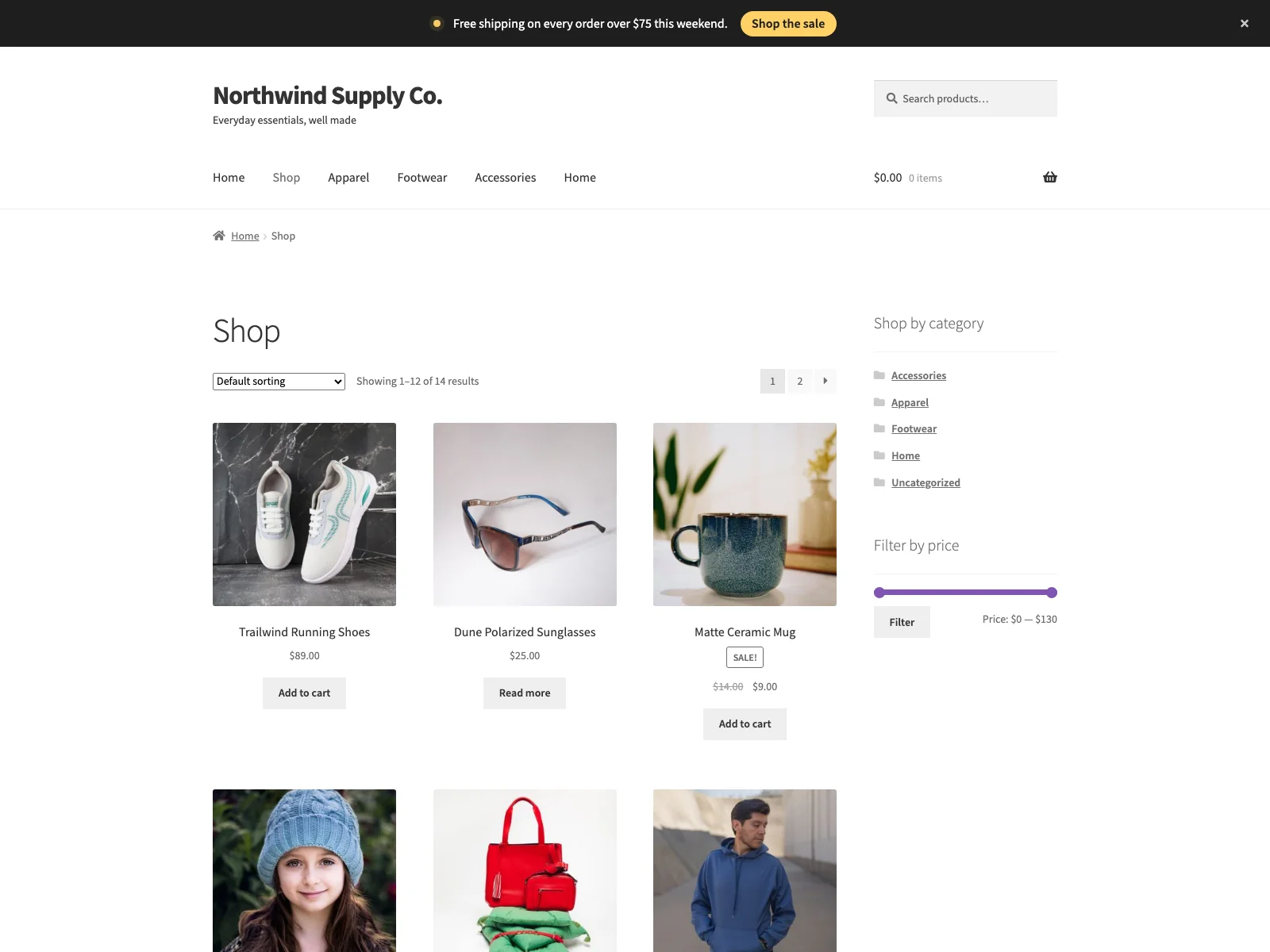 The Notice bar sits above the header on every front-end page, ready for shoppers to read and dismiss.
You write the message in a field that accepts a small, safe-HTML allow-list: bold, italic, links and line breaks, and nothing else, so you can format and link without exposing the page to arbitrary markup. You can add an optional call-to-action button with its own label and URL, and choose whether it opens in a new tab. Leave the button label blank and the bar shows text only. For appearance, you set the background, text and accent colours with native colour pickers, and a live preview panel on the settings screen shows the finished bar as you type, so you are not saving and reloading the storefront to check your work.
The bar is dismissible when you switch that on, with a “Remember for (days)” control so you decide how long a shopper’s choice lasts. The dismissal is stored in the visitor’s browser via localStorage, with no cookies and no personal data, and editing the message text re-shows the bar to everyone automatically, so a new announcement is never hidden by an old dismissal. Set the days to 0 to remember the dismissal indefinitely.
It is built to stay out of the way. The bar renders server-side at wp_body_open, the CSS loads only when the bar is enabled and has a message, and the dismissal script loads only when the bar is also dismissible, so a disabled bar adds nothing to your pages. The markup is plain HTML with no front-end JavaScript framework, the bar is an ARIA region with a keyboard-operable close button and focus-visible styles, and it respects reduced-motion preferences. There is no layout shift beyond the bar’s own height. The plugin is translation-ready with a bundled POT file, removes its data cleanly on uninstall, and is HPOS and cart and checkout blocks compatible.
Setting it up
Getting the bar live takes a couple of minutes:
- Install the plugin from Plugins > Add New, or upload it to
/wp-content/plugins/plogins-notice. WooCommerce must be installed and active. - Activate it.
- Go to WooCommerce > Announcement Bar, write your message, set your colours, and configure the link and dismissal options. The live preview updates as you go.
- Switch the master enable toggle on. When it is off, nothing renders on the storefront and no CSS or JavaScript is loaded.
That is the whole flow. There is one settings screen, organised into message, link, appearance and behaviour cards, and the bar appears at the top of every front-end page as soon as it is enabled.
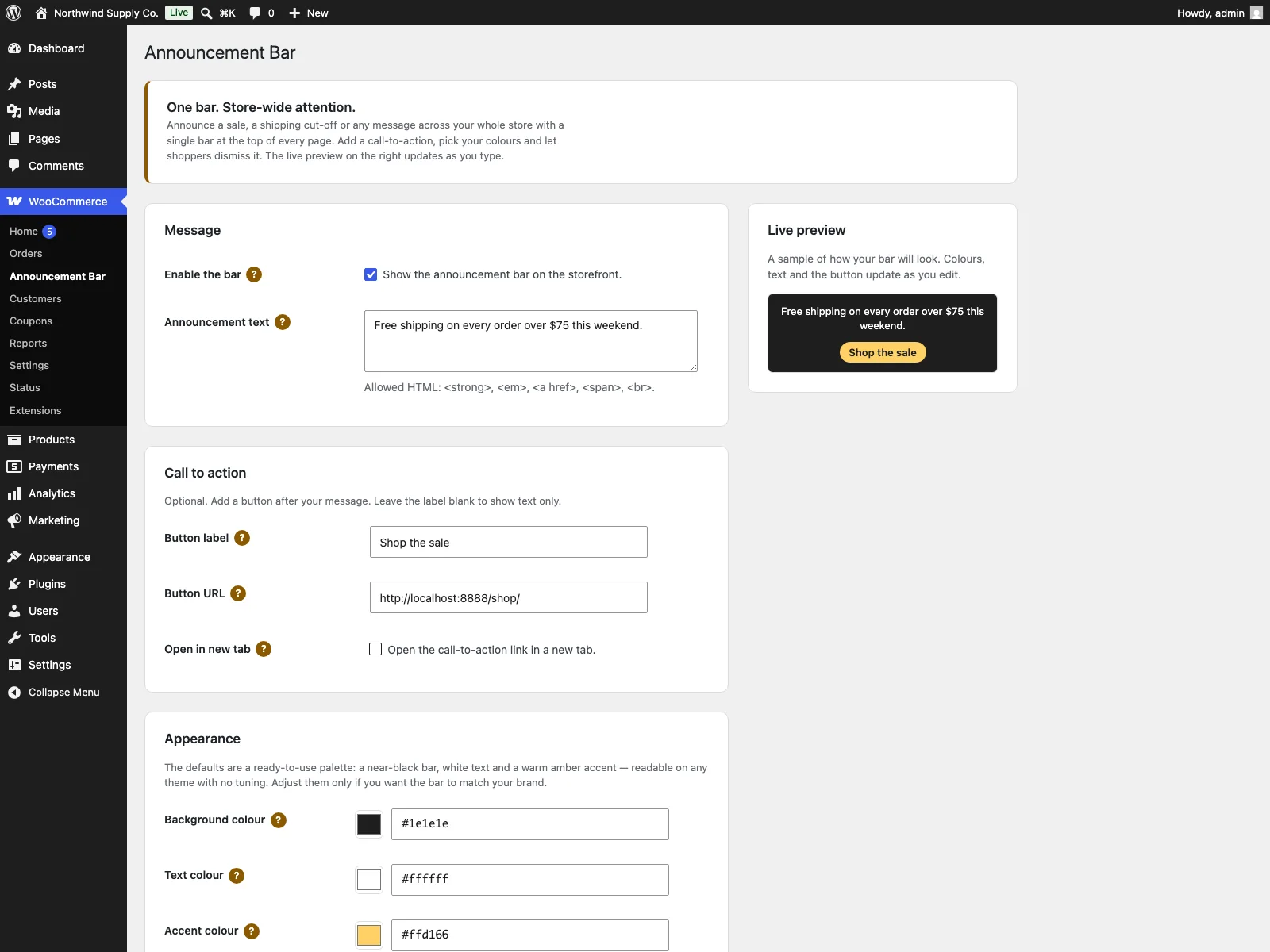 The single wp-admin settings screen where you write the message, pick colours and configure the link and dismissal options.
Practical tips for a bar that works
A plugin gives you the mechanism; the judgement is yours. A few pointers:
- Treat the bar as a single channel. Decide what the bar is for this week, and resist the urge to cram a second message in. If you have two things to say, say the more urgent one and find another place for the other.
- Match the colours to your brand, not to “attention”. A bar that clashes with the rest of the store reads as an ad, and shoppers have trained themselves to ignore ads. A bar that uses your own accent colour reads as part of the shop.
- Use the dismiss window deliberately. A short “Remember for” window suits a fast-moving promotion you want returning visitors to see again; a long one suits a standing notice, like a permanent free-shipping threshold, that does not need repeating.
- Edit the text when the offer ends. Because changing the message re-shows the bar to everyone, updating the copy is also how you re-engage shoppers who dismissed the previous one. An empty or disabled bar is better than a stale one.
- Keep the link honest. Send the button to the exact page the message promises. A “Shop the sale” button that lands on the generic home page is a small broken promise that costs trust.
Notice versus default WooCommerce
WooCommerce has no announcement bar at all, so without a plugin the message has to live inside a page, a widget area, or an email. Here is the difference for a store-wide notice specifically:
| Capability | Default WooCommerce | Notice |
|---|---|---|
| Store-wide bar at the top of every page | None built in | Yes, rendered at wp_body_open |
| Message with safe formatting | n/a | Bold, italic, links and line breaks |
| Call-to-action button | n/a | Optional label, URL and new-tab option |
| Custom colours with live preview | n/a | Background, text and accent, with preview |
| Dismissible with a remembered choice | n/a | Yes, via localStorage, with a days setting |
| Re-show on message change | n/a | Automatic when the text changes |
| Assets only when active | n/a | CSS and script load only when the bar is on |
| Accessibility | n/a | ARIA region, keyboard close, reduced motion |
| Cost | Free (no bar) | Free; PRO adds analytics, targeting and more |
Free versus PRO
The free edition is a complete tool for one bar: message, CTA, colours, dismissal and the accessibility and performance work, all included and all enough for most stores. Notice Pro is a separate add-on, distributed through Freemius, that requires the free plugin to be installed and active and builds on its foundation. It adds click and impression analytics under a dedicated analytics screen, page targeting so a bar shows only on the shop catalog, single products, or cart and checkout, role targeting for guests, logged-in customers or selected roles, geo and device targeting by country and by mobile or desktop, up to five bars running at once each with its own settings, and A/B testing that split-tests a variant message and CTA with per-variant results. If you only need one clear message shown to every shopper, the free bar is the whole answer; PRO is for stores that want to target, measure and test what they show.
The short version
WooCommerce gives you no way to put one store-wide message in front of every visitor, so sale dates, shipping cut-offs and free-shipping thresholds end up where shoppers miss them. A good announcement bar fixes that with a single, dismissible, accessible strip at the top of every page that loads nothing when it is switched off. The free Notice plugin adds exactly that: one bar with a safe-formatted message, an optional CTA, your own colours, a remembered dismissal and a live preview, rendered server-side with assets that load only when the bar is active. When you are ready to target, measure and test, Notice Pro adds analytics, page, role, geo and device targeting, multiple bars and A/B testing on top.