WooCommerce back-in-stock notifications and waitlists
By Mariusz Szatkowski · Updated: 2026-11-03
When a shopper lands on a WooCommerce product that is out of stock, the default outcome is simple: they leave, and most never come back. The store did the expensive part already, earning the visit and paying for the click, and then the page itself turns the visitor away with a dead “out of stock” line. A back-in-stock notification turns that dead end into a second chance. Instead of losing the visitor, the store captures their interest and contacts them the moment the product can be bought again. This guide explains how back-in-stock notifications work, why they are one of the highest-return additions to a WooCommerce store, what a good waitlist needs to get right, and how the free Waitlist plugin adds that flow to WooCommerce.
What a back-in-stock notification is
A back-in-stock notification is an automatic alert that tells a customer a previously unavailable product is available again. The mechanism behind it is a waitlist. While an item shows as out of stock, the product page offers a short signup, the shopper leaves an email address, and the store records that they are waiting. When stock returns, the store sends everyone on the list a notification, usually by email.
What makes this effective is that the intent already exists. Someone who asks to be told when a product returns has shown a clear signal that they want to buy it. You are not chasing a cold audience or running a discount to win attention; you are reconnecting with people who reached the product page, found it empty, and still wanted in. That is about as warm as a lead gets, and the default WooCommerce product page throws it away.
Why it matters for a WooCommerce store
An out-of-stock page is one of the quietest sources of lost revenue in an online shop. The visitor did the hard part by finding the product, and then hit a wall. Three things change when you add a waitlist:
- You recover demand that would otherwise vanish. Every signup is a customer you would have lost, kept instead. The visit is no longer wasted; it becomes a pending sale.
- You bring buyers back without paying for traffic again. The notification email reaches people who already chose the product, so the cost of the second visit is effectively zero. There is no new ad spend and no fresh acquisition cost behind the order.
- You learn what to reorder. A list of who is waiting, and for which product or variation, is direct evidence of real demand. It tells you which items deserve a faster restock and how much to order, rather than guessing from past sales of an item you could not keep on the shelf.
In go-to-market engineering terms, a waitlist functions as an automated demand capture engine. Instead of absorbing leakages in the acquisition funnel and paying for traffic twice, sales infrastructure aggregates high-intent customer demand and reactivates pipeline opportunities the moment inventory becomes available.
That last point is easy to underrate. Most stores reorder on instinct or on last quarter’s numbers. A waitlist gives you a forward-looking demand signal: the people on the list want to buy now and are waiting for you to make it possible.
Tip: Treat a growing waitlist on an item as your clearest “order more of this” signal, and make the most-waited products a purchasing priority rather than reordering on a hunch.
How a waitlist works, step by step
- A product, or a specific variation, runs out of stock or goes onto backorder.
- The product page replaces the dead “out of stock” state with a one-step signup form.
- The shopper enters an email address, ticks a consent box, and joins the waitlist for that exact item.
- Stock is replenished, manually or through a supplier sync, and the product is set back to “in stock”.
- The store automatically emails everyone waiting for that item.
- The shopper returns to a product that is now available and completes the purchase.
The whole loop runs on its own once it is set up. The only manual step is restocking the product, which you were going to do anyway. There is no separate “now email the waitlist” task to remember, because the notification is tied to the stock-status change itself.
What a good waitlist needs
A waitlist sits on your busiest pages and handles customer email addresses, so how it is built matters as much as what it does. Use this as a checklist whether you build, buy, or install one:
- It sends through your own mailer. A waitlist does not need an external email service. Sending through the WordPress mailer keeps customer addresses on your own site rather than handing them to a third party, which is simpler for privacy and avoids another subscription.
- It is accessible. The signup is a real form that every shopper should be able to use, including with a keyboard and a screen reader. A visually hidden label on the email field, a real consent checkbox, and a status message announced to assistive technology are the baseline to look for.
- It protects Core Web Vitals. The form should reserve its own space in the page so it does not push the layout around as the page loads, and it should add no heavy JavaScript. A waitlist that causes layout shift or slows interaction trades one problem for another.
- It tracks the exact variation. When a shopper wants a medium in blue, the notification has to fire for that variation, not just the parent product. Variation-aware waitlists avoid telling people an item is back when their size still is not.
- It captures consent. Collecting an email address to message someone later is exactly the kind of processing that needs explicit, recorded consent. A required checkbox at signup, with wording you control, keeps the list clean and your obligations clear.
- It lets customers manage themselves. People who join several waitlists need a way to see what they are waiting for and leave a list, without emailing you to be removed.
How Waitlist handles it
Waitlist for WooCommerce is a free, open-source plugin built around exactly these constraints. It adds a waitlist form automatically to any out-of-stock or backorder (“on backorder”) product page, and emails everyone waiting when you set the product back to “in stock”. There is no external service, no account to sign up for, and nothing leaves your database.
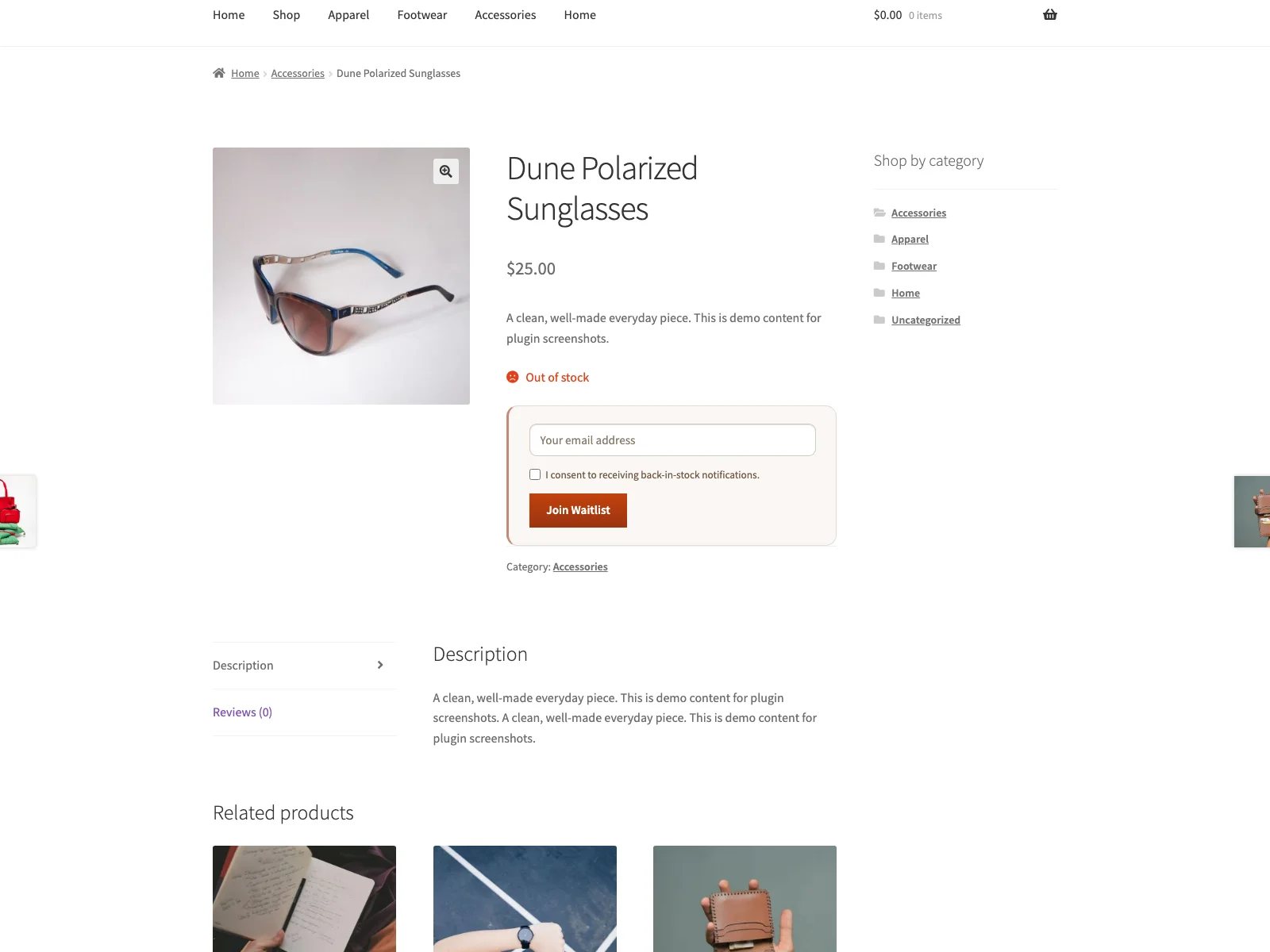 The waitlist form replaces the dead out-of-stock state with a one-tap email signup, pre-filled for logged-in customers.
The shopper journey
On a simple product, the form appears as soon as the item is unavailable. The shopper enters an email address, ticks a required consent checkbox, and submits. For logged-in customers the email field is pre-filled, so it is genuinely one tap. The submit runs a small vanilla-JavaScript fetch call rather than reloading the page, and the success or error message is announced in an aria-live region while the form reports aria-busy during the request. The email field carries a visually hidden label and consent is a real required checkbox, so the form will not submit without it.
On variable products, Waitlist hooks into WooCommerce’s existing variation script. The shopper chooses options in the standard variation form first; only when the selected variation is out of stock or on backorder does the waitlist form appear, and the subscription is stored for that specific variation. When that variation returns, only the people waiting for it are emailed.
Note: Because the signup is stored per variation, the notification fires only when that exact size or colour returns, so shoppers are never told an item is back while their variation still is not.
Logged-in customers also get a Waitlists tab under My Account, listing the products they are waiting for, the current stock status of each, and a button to leave any list. That removes the “please take me off the list” email entirely.
The admin side
Notifications fire on WooCommerce’s woocommerce_product_set_stock_status hook, so there is no queue and no background cron to run or babysit. When a product’s status changes to instock, Waitlist sends a plain-text email through wp_mail to every pending subscriber for that product (and, for variations, its parent), then marks each one as notified so nobody is contacted twice.
Subscriber data lives in a single custom table that the plugin creates and version-tracks, inside your own WordPress database. From WooCommerce > Waitlist > Subscribers you can view the list, filter by product, and export it as CSV. Uninstalling drops the table and removes the plugin’s options, so it leaves nothing behind.
Setting it up
Getting the waitlist live takes a couple of minutes:
- Install and activate WooCommerce (8.0 or later). Waitlist is a WooCommerce extension and stays inactive with an admin notice if WooCommerce is missing or out of date.
- Install Waitlist from the WordPress plugin directory, or upload the
plogins-waitlistfolder to/wp-content/plugins/, and activate it. - Optionally visit WooCommerce > Waitlist to customise labels and notification text. Sensible defaults work out of the box, so this step is genuinely optional.
- That is it. The waitlist form now appears automatically on any out-of-stock or backorder product page.
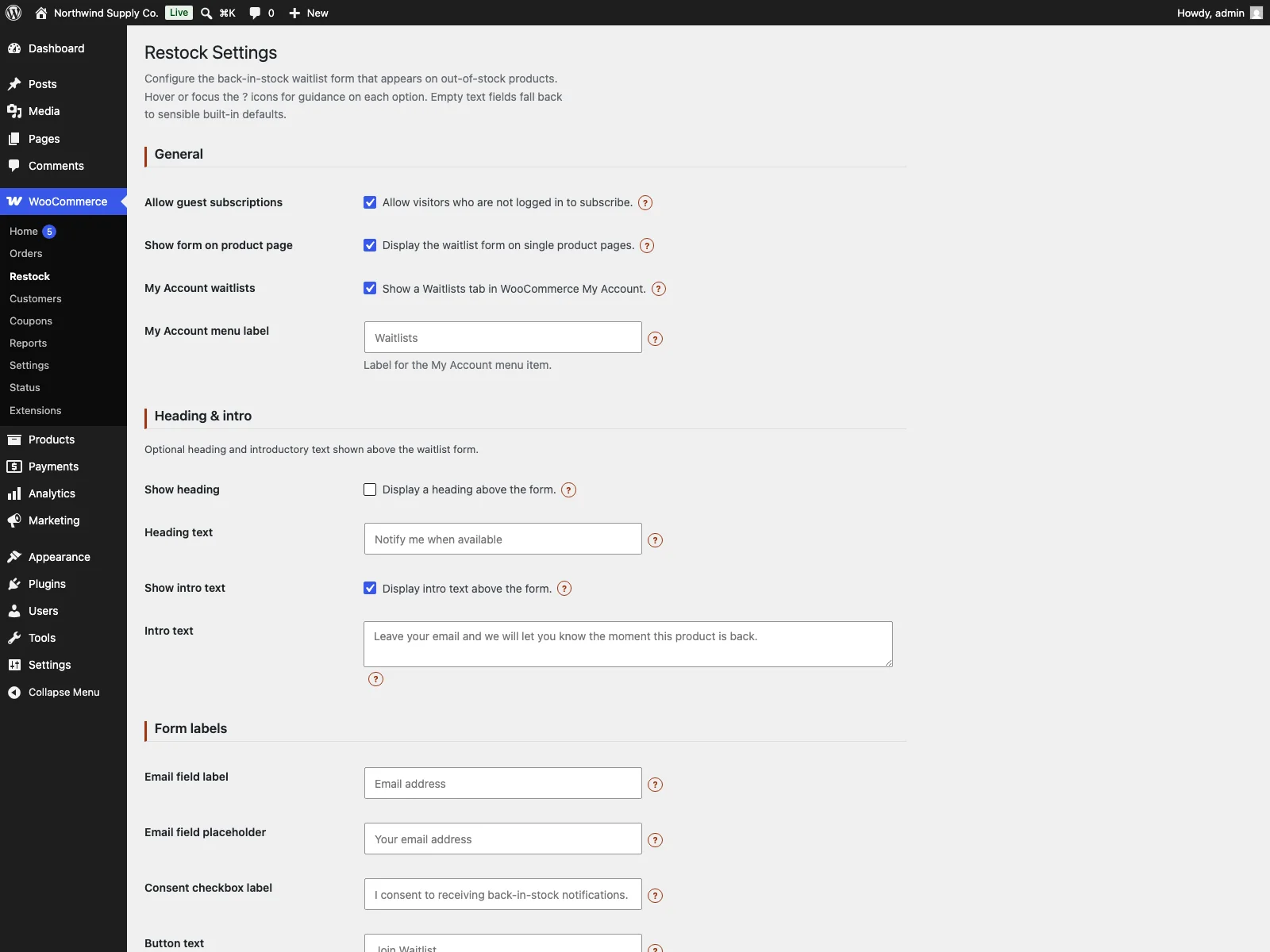
If you would rather place the form somewhere specific in a product template, the [restock_waitlist] shortcode does that, with an optional id attribute to target a particular product. The form template is also theme-overridable at yourtheme/restock/single-product/waitlist-form.php if you need to change the markup, and the settings screen lets you customise the heading, intro text, every form label, the on-screen submit messages, and the notification email’s subject, intro, and closing text. Guest (not-logged-in) signups are allowed by default and can be switched off if you want to restrict the waitlist to registered customers.
 The Subscribers screen lists everyone waiting, filterable by product and exportable to CSV.
Practical tips for running a waitlist
A plugin gives you the mechanism; a few habits make it pay off:
- Word the consent label deliberately. The shopper is agreeing to be emailed about this product. Say that plainly. You control the wording, and a clear label keeps your list defensible and your privacy policy honest.
- Reorder against the list, not against a hunch. A growing waitlist on an item is the clearest “order more of this” signal you will get. Treat the most-waited products as a purchasing priority.
- Waitlist during business hours. Because the email fires the instant you flip the status to “in stock”, flip it when you can field the resulting orders and questions, not last thing on a Friday.
Warning: The notification is tied to the stock-status change itself, so setting a product back to “in stock” emails every waiting subscriber immediately. Flip the status only when you are ready for the resulting orders.
- Keep the email plain and direct. The notification’s only job is to say the product is back and link to it. Waitlist sends plain text through your own mailer, which lands reliably; resist the urge to dress it up.
- Set expectations on the product page. A short line telling shoppers they can sign up to be notified turns the empty product page into an obvious next step rather than an exit.
Waitlist versus default WooCommerce
Core WooCommerce simply marks a product “out of stock” and stops there. A waitlist plugin fills the gap. Here is the difference for the back-in-stock flow specifically:
| Capability | Default WooCommerce | Waitlist |
|---|---|---|
| Out-of-stock product page | Shows “out of stock”, no way to capture interest | One-step signup to join the waitlist |
| Backorder pages | No capture | Form shown on “on backorder” products too |
| Notify customers when restocked | None | Automatic email on the stock-status change |
| Per-variation waitlist (size, colour) | No | Yes, form appears for the selected unavailable variation |
| Customer manages their requests | No | Yes, a Waitlists tab under My Account |
| Consent capture | n/a | Required consent checkbox on every signup |
| Sending | n/a | Your own WordPress mailer (wp_mail), no external service |
| Subscriber export | No | CSV export, filterable by product |
| Performance | n/a | No jQuery of its own, no layout shift, deferred submit |
| Cost | Free (core) | Free (GPL); PRO adds analytics and send automation |
The takeaway: default WooCommerce loses the out-of-stock visitor, and any waitlist plugin recovers them. What separates a good one is the detail above: variation accuracy, your own mailer, recorded consent, and no performance cost.
Free versus PRO
The free edition is a complete flow, not a teaser. The signup form, the automatic restock email through your own mailer, variation-aware signups, the My Account Waitlists tab, the consent checkbox, the shortcode, theme-overridable templates, and CSV export of subscribers are all included, and all under the GPL on WordPress.org.
Waitlist PRO is an add-on that extends the free plugin (it requires the free plugin to be installed and active) for stores running waitlists at higher volume. It adds a Demand Analytics dashboard showing total pending signups, demand grouped per product with the highest first, the number of distinct products with demand, all-time fulfilled signups, and the most-demanded products that are currently out of stock, plus enriched demand and subscriber CSV exports. It adds double opt-in, an optional email confirmation (the link is valid for seven days) before a shopper is stored, for cleaner lists. It adds scheduled, or drip, sends so a restock staggers its emails in configurable batches rather than firing hundreds at once and overwhelming both your mail server and a limited inventory. And it adds category segmentation to include or exclude product categories before notifications go out. PRO extends the free plugin rather than replacing it, so nothing in the free flow changes when you add it.
The short version
Back-in-stock notifications are one of the few additions to a WooCommerce store that pay for themselves directly: they recover demand you have already earned, bring buyers back at no extra acquisition cost, and tell you what to reorder. A good waitlist sends through your own mailer, captures consent, stays accessible, respects Core Web Vitals, and tracks variations precisely. The free Waitlist plugin covers all of that, with a one-step signup on out-of-stock and backorder products, automatic emails through your own WordPress mailer, variation support, a My Account view, and CSV export. Add Waitlist PRO when the volume justifies demand analytics, double opt-in, drip sends, and segmentation.